Make.com for Real Estate Agents: Automate Leads, Follow-Ups, and Listings
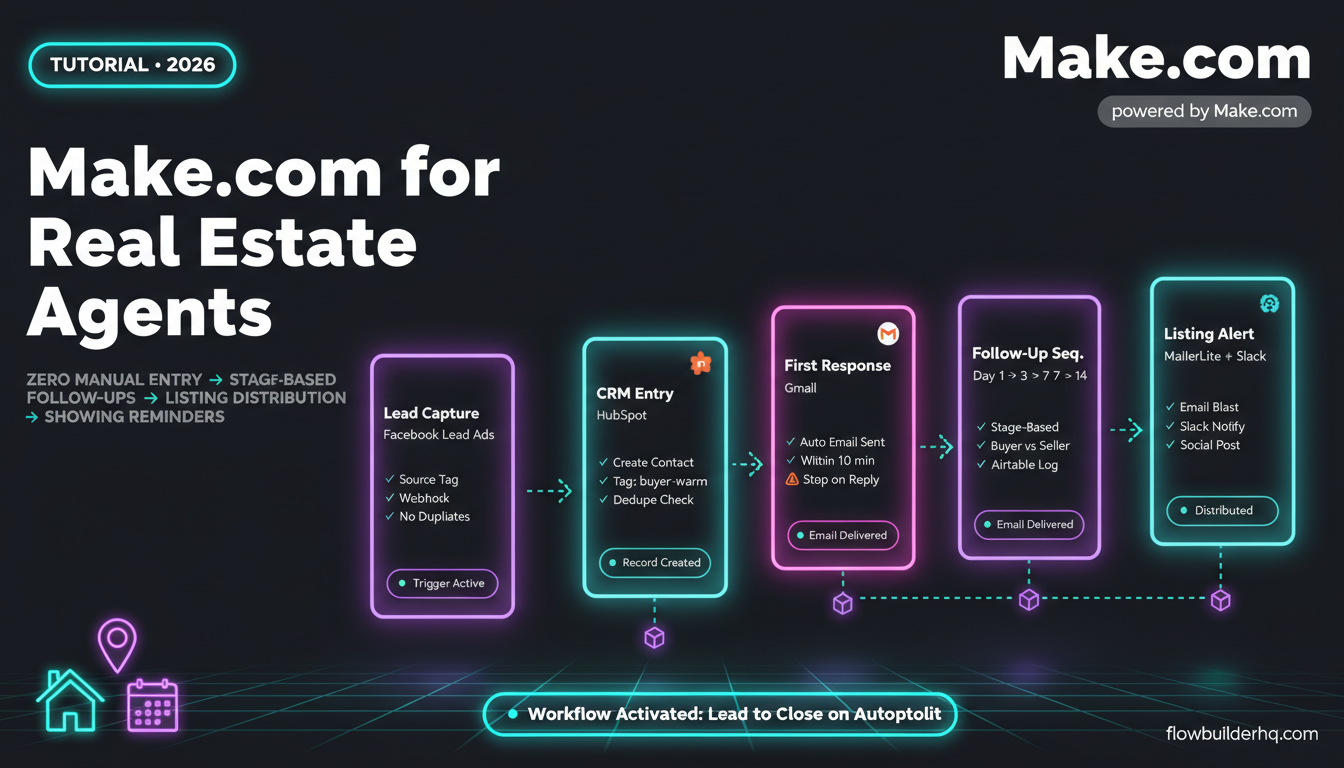
If you’re a real estate agent running your business solo or with a small team, you already know the grind: new leads come in from five different sources, follow-up falls through the cracks, listing updates need to go out across multiple platforms, and client communication happens in scattered threads. Make.com for real estate agents isn’t a magic fix — but it cuts the manual work that’s eating hours you don’t have.
This post covers the specific workflows that work well for agents, what Make.com actually handles cleanly, where it gets awkward, and the exact setup patterns worth using. No fluff — just the workflows.
Why Automation Fits Real Estate (and Where It Doesn’t)
Real estate runs on timing. A lead who doesn’t hear back within 10 minutes is already talking to someone else. Most agents know this, yet still manually copy contacts from Zillow or Facebook Lead Ads into their CRM every morning. That lag kills deals.
Automation fits anywhere you’re doing the same action repeatedly based on a trigger — a new lead arrives, a form is submitted, a date approaches. It doesn’t fit complex negotiations, pricing judgment calls, or relationship nuance. Those stay with you. The data plumbing doesn’t have to.
Make.com specifically suits real estate agents because its visual scenario builder handles multi-step, conditional workflows without requiring code. You can build logic like: “If lead source is Facebook and property interest is under $400K, send email sequence A and add tag ‘buyer-warm’ in HubSpot.” That kind of routing would take a developer in most other tools.
If you’re comparing your options before committing, this breakdown of Make.com vs Zapier for solopreneurs covers the real pricing math and workflow differences you’ll care about.
Make.com for Real Estate Agents: The Core Workflows
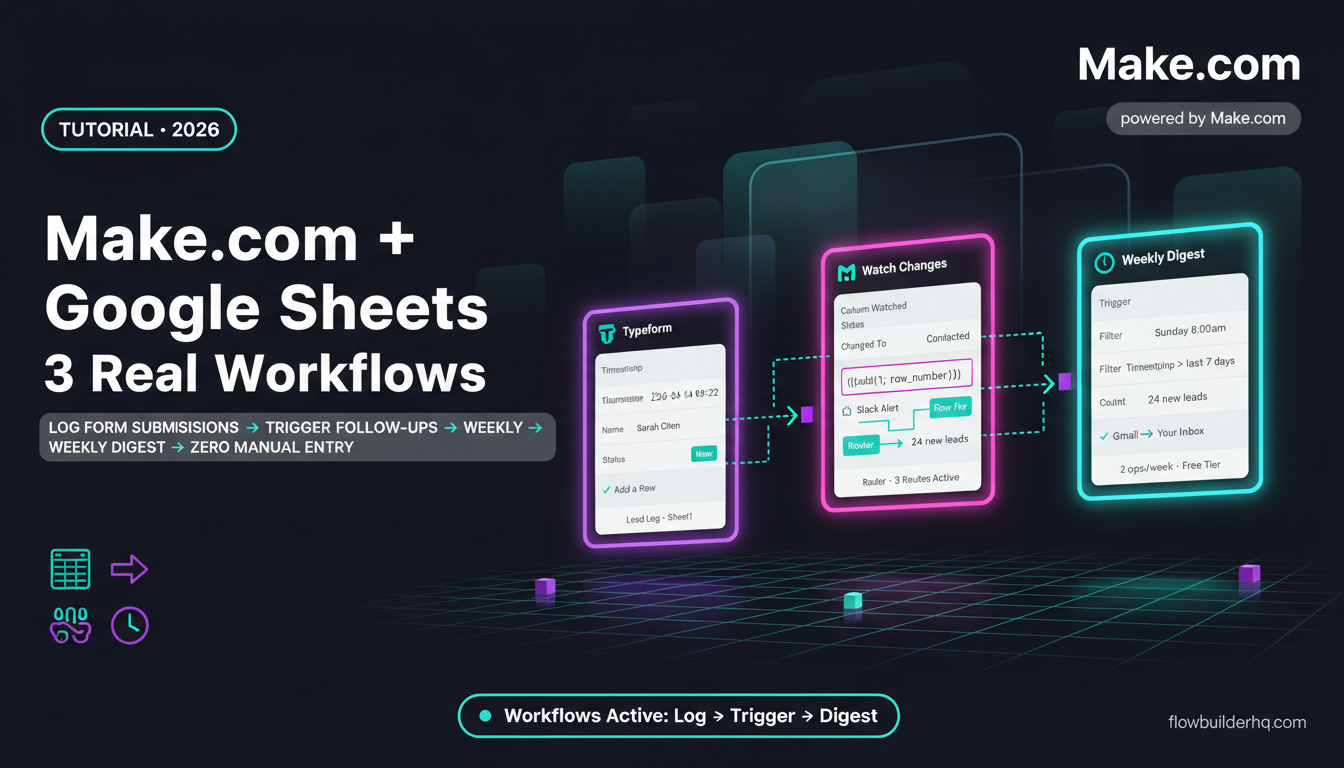
1. Lead Capture → CRM Entry (Zero Manual Data Entry)
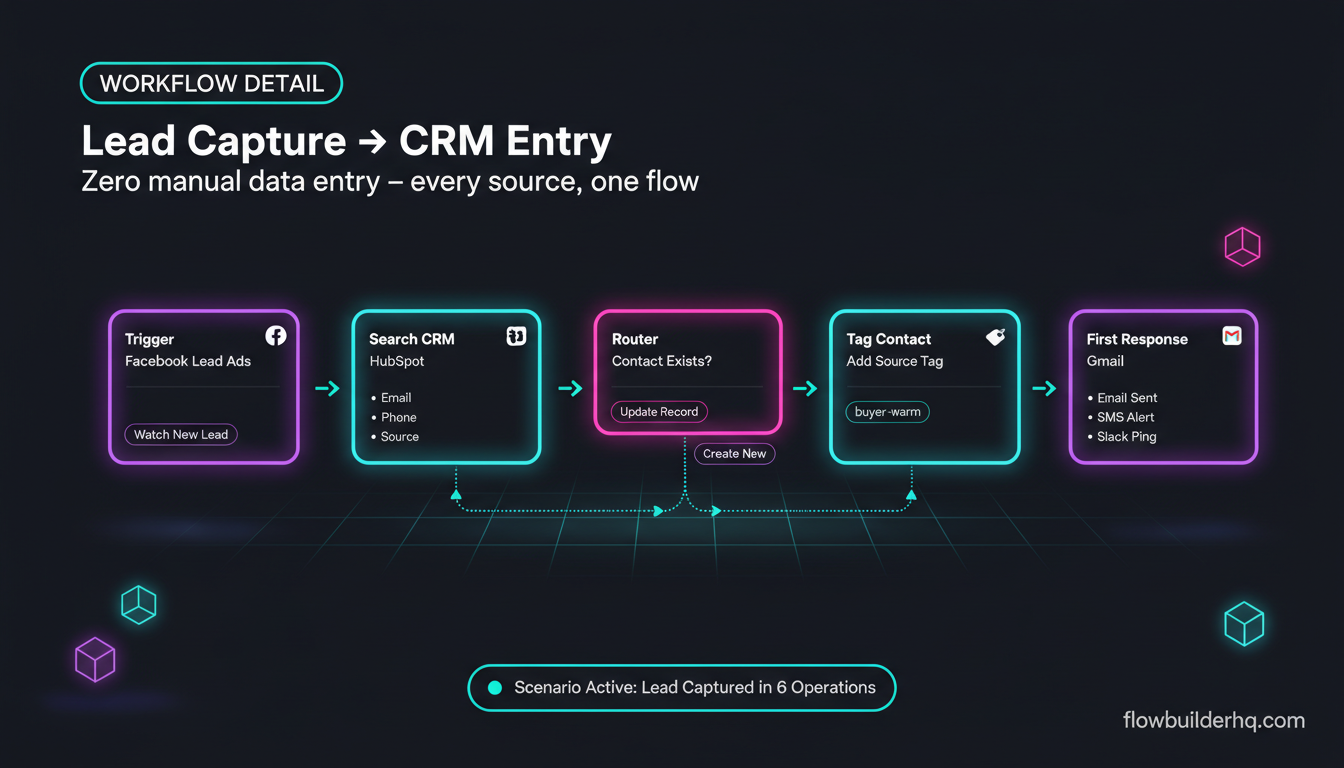
This is the first automation every agent should build. The goal: any lead from any source lands in your CRM automatically, tagged by source, with no copy-pasting.
Common lead sources for agents: Zillow Premier Agent, Facebook Lead Ads, Realtor.com, your own website contact form, and direct referrals via email. Make.com connects to all of these — most natively, some via webhook.
Basic scenario structure:
- Trigger: Facebook Lead Ads — Watch New Lead (or use a webhook for Zillow, which requires a small workaround via Zapier-to-Make bridge or a dedicated form tool like Typeform/Jotform)
- Action: Search CRM for existing contact (avoid duplicates)
- Router: If contact exists → update record. If not → create new contact
- Action: Add tag based on lead source field
- Action: Send automated first-response email via Gmail or MailerLite
- Action: Post Slack/SMS notification to yourself so you can follow up personally within minutes
The router step is what makes this worth building properly. Without it, you’ll end up with duplicate contacts every time someone submits a form twice or comes in from two sources.
For CRM, HubSpot’s free tier works here. Make.com has a native HubSpot module that handles contact creation, deal creation, and property association cleanly. If you’re not already using HubSpot, this HubSpot CRM setup walkthrough shows how to configure it before you connect it to Make.
2. Automated Follow-Up Sequences by Lead Stage
Most agents send a welcome email and then forget about a lead until they book a call. The agents closing more deals are the ones with systematic touchpoints at day 1, day 3, day 7, day 14, and day 30.
Make.com handles this through scheduled scenarios and date-based routing. The setup:
- When a new lead is created in your CRM, Make.com logs the creation date to a field or an Airtable row
- A scheduled scenario runs daily, checking for contacts who hit specific day thresholds
- Based on the threshold and lead tag (buyer vs. seller, cold vs. warm), it triggers the appropriate email
- When a lead replies or books a call, a separate webhook updates their status and stops the sequence
The “stop on reply” piece is important. You don’t want to send a “just checking in” email to someone who already booked a showing. This requires connecting your email provider’s webhook (Gmail with a Google Apps Script trigger, or natively through ActiveCampaign) back to Make.com to update the contact status.
For a detailed look at building this kind of follow-up automation, this complete email follow-up workflow guide covers the exact scenario structure including the stop-on-reply logic.
3. New Listing Distribution Across Channels
When a listing goes live, agents typically post to their website, update social media, email their buyer list, and notify their sphere of influence. Most do this manually, one platform at a time.
The trigger depends on your workflow. Common options:
- A new row added to an Airtable “Listings” database (you fill in address, price, photos, description)
- A form submission from your listing intake form
- A new listing status change via MLS integration (these are trickier — most MLS systems don’t have direct APIs, but RETS feeds and third-party providers like RETs.io or Realtyna can expose webhooks)
Once triggered, the scenario can:
- Post to Instagram, Facebook, and LinkedIn using Make.com’s native social modules (with pre-formatted caption from a template)
- Send a “New Listing Alert” email to your segmented buyer list via MailerLite or ActiveCampaign
- Add the listing to a Google Sheet that feeds your website’s listing page (if your site uses Google Sheets as a backend via a plugin)
- Notify your admin or assistant via Slack
For the social posting automation, this step-by-step guide to automating social media posts with Make.com covers the caption templating and image handling that trips most people up on their first build.
4. Showing Confirmation and Reminder Automation
No-show rates drop significantly when clients get a confirmation email plus a reminder 24 hours out and another 2 hours out. This is a simple time-based automation that most agents haven’t built yet.
Setup:
- Client books a showing via Calendly (or your scheduling tool)
- Make.com watches for new Calendly events via webhook
- Immediately sends a confirmation email with showing details, your contact info, and parking/access instructions
- Schedules two reminder emails: one 24 hours before, one 2 hours before (using Make.com’s built-in scheduler or a Google Calendar event trigger)
- After the showing time passes, triggers a follow-up email asking for feedback
The post-showing feedback request is worth adding — it surfaces objections early and gives you content for refining your listings. Keep it short: one question, link to a Google Form.
5. Client Onboarding Automation (New Buyer or Seller)
When someone signs a buyer representation agreement or a listing agreement, there’s a predictable set of things that need to happen: welcome email, intake form, document request, introduction to your transaction coordinator, calendar invite. Doing all of that manually for every new client is unnecessary.
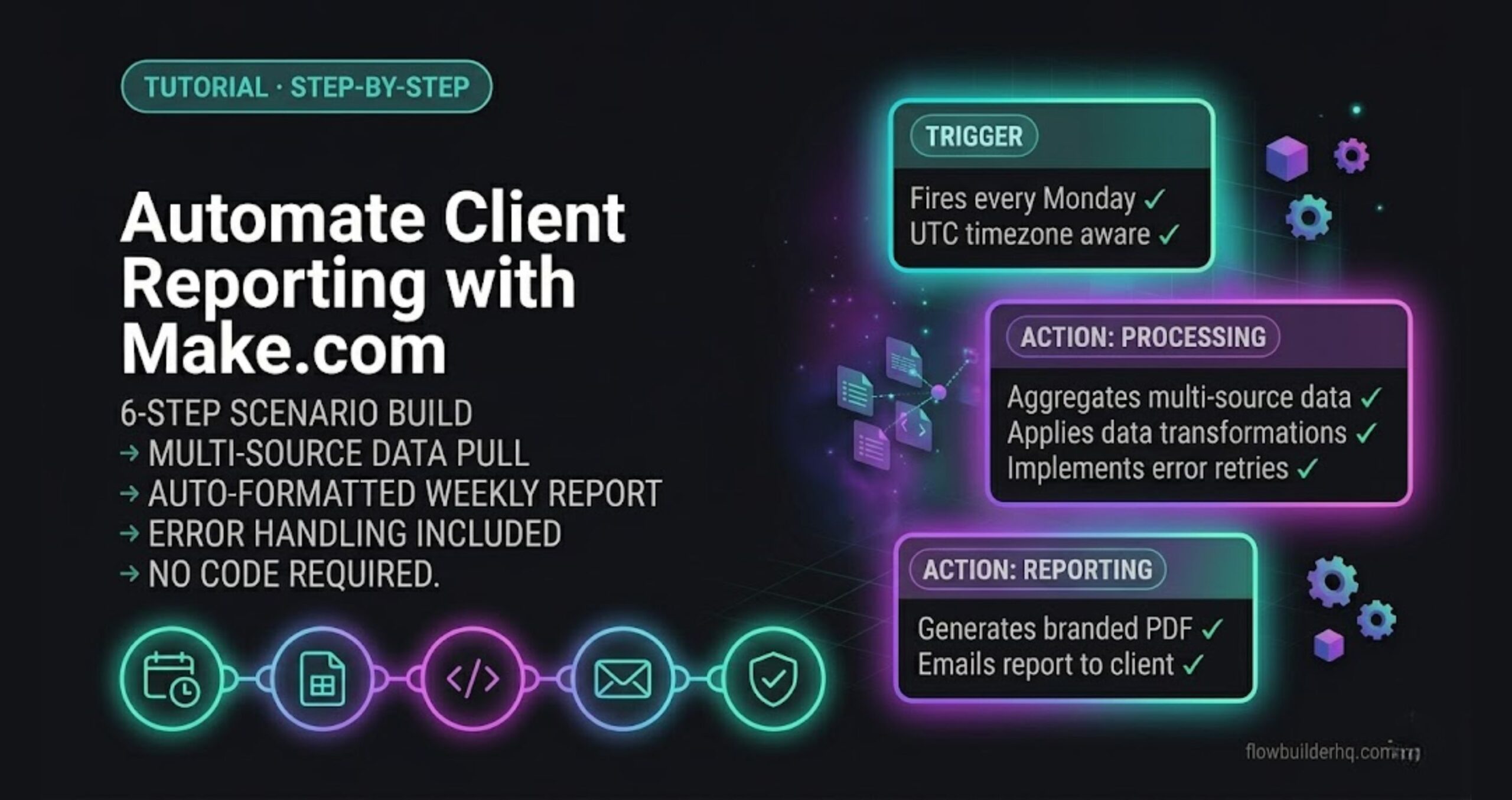
Build a Make.com scenario triggered by a CRM stage change (contact moves to “Active Client”) that fires off the entire onboarding sequence automatically. If you want to see how this is done end-to-end, this client workflow automation breakdown uses a similar structure and translates directly to real estate.
Make.com Pricing for Real Estate Agents
Make.com’s free plan gives you 1,000 operations per month. For a solo agent, that runs out fast once you have lead capture, follow-up sequences, and listing distribution running simultaneously. The Core plan at $9/month gives you 10,000 operations, which covers most solo agents comfortably. If you’re handling high-volume lead sources (100+ leads/month from paid ads), the Pro plan at $16/month makes more sense.
Operations aren’t always 1:1 with actions — each module execution in a scenario counts as one operation. A 6-step scenario processing one lead uses 6 operations. Worth mapping out your expected volume before assuming the free tier will cover you. For a full breakdown, Make.com’s 2026 pricing explained in detail covers the credit math with real examples.
At $9-16/month, Make.com is one of the most cost-effective starting points available in a real estate business. One recovered lead per month from faster follow-up covers that cost by orders of magnitude.
What Make.com Doesn’t Handle Well for Real Estate
Being direct about the limits saves you frustration:
- MLS direct integration: Make.com has no native MLS module. You’ll need a middleware layer (a third-party API provider or a data connector like Zapier’s MLS integrations) to pull listing data automatically. Not impossible, but not clean out of the box.
- Document generation: If you need to generate contracts or disclosures, Make.com can trigger a tool like DocuSign or PandaDoc, but it doesn’t generate complex documents itself. You’ll use it to route and trigger, not to build.
- Phone/SMS at scale: Make.com connects to Twilio and similar SMS services, but you’ll need separate service accounts and credits. If SMS is a major part of your follow-up, a dedicated real estate CRM with built-in texting (like Follow Up Boss or LionDesk) might handle that layer better.
- Complex conditional logic at scale: When you have 15+ lead sources and 8+ email sequences, Make.com scenarios can get visually messy. At that point, you might want to look at whether n8n’s approach fits your complexity better — especially if you’re open to self-hosting.
Which CRM to Pair With Make.com
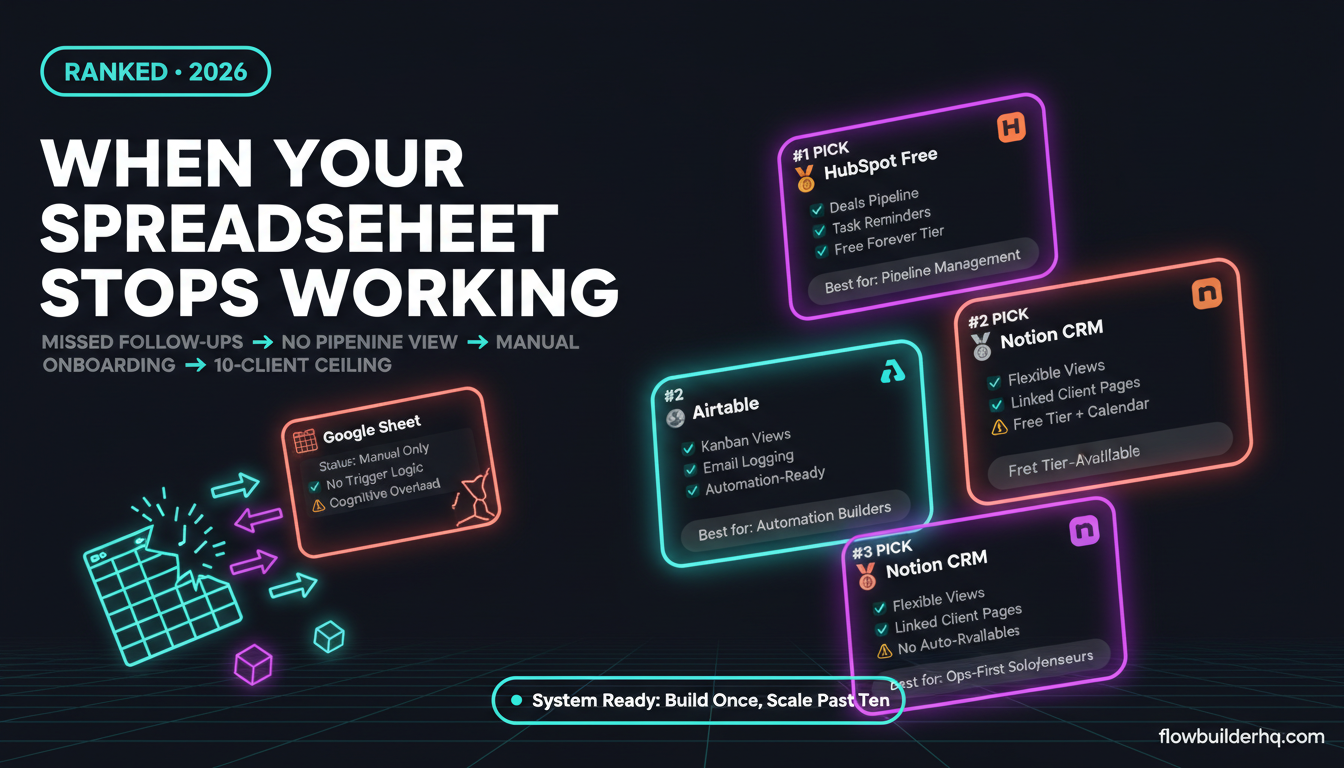
Make.com has native modules for HubSpot, ActiveCampaign, Airtable, and several others. For real estate agents, the choice usually comes down to budget and how much CRM sophistication you actually need.
HubSpot Free + Make.com is a strong starting point. HubSpot’s free CRM handles contacts, deals, and pipeline stages. Make.com connects via native module. The free tier is genuinely usable. If you’re weighing the HubSpot upgrade question, this comparison of HubSpot free vs. paid tiers is worth reading before you commit.
ActiveCampaign + Make.com makes sense if email automation is your primary growth lever. ActiveCampaign’s Starter plan is $15/month (1K contacts) and includes automation sequences, which reduces how much you need Make.com to handle on the email side. See this ActiveCampaign 2026 review for a frank assessment of where it’s worth the cost.
Airtable + Make.com works well if you prefer managing your listings and contacts in a spreadsheet-style view. Airtable’s free tier is functional for solo agents. Make.com’s Airtable module handles record creation, search, and updates cleanly. The downside: Airtable isn’t a CRM — you’ll be building CRM-like functionality manually.
For a broader comparison across CRM options, this ranked CRM guide for solopreneurs covers the trade-offs honestly, including options designed for smaller operations.
Getting Started: Where to Begin
Don’t try to automate everything at once. The highest-ROI starting point for most agents is the lead capture → CRM → first response sequence. Build that first, run it for two weeks, verify the data quality, then add the follow-up sequence layer.
If you’re new to Make.com’s interface, this beginner’s guide to Make.com webhooks is a useful starting point — the webhook pattern comes up in almost every real estate automation once you move beyond native integrations.
Make.com’s free plan is enough to test your first two or three scenarios. Sign up, build the lead capture scenario, and see if it runs cleanly before upgrading. Start a free Make.com account here and you can have the lead-to-CRM scenario running in under an hour if you already have your tools connected.
The agents who pull ahead aren’t the ones who work harder — they’re the ones whose systems work while they’re at showings. Make.com’s integration library lists every native connection currently available, which is worth scanning before you start building to confirm your existing tools are covered.
For context on how this kind of automation scales beyond real estate into broader service businesses, this ecommerce automation playbook shows similar scenario patterns applied to a different vertical — the structural logic translates directly.
One more resource worth bookmarking: Make.com’s official scenario documentation explains operation counting, error handling, and scenario scheduling in detail — all three of which you’ll hit questions about within your first week of building.
Building this yourself? Get the workflow pack.
5 ready-to-import n8n workflows — lead capture, invoicing, content repurposing, onboarding, social posting. Free.