Make.com for Coaches and Consultants: Automate Your Client Workflow Without Hiring
If you run a coaching or consulting business solo — or with a tiny team — you already know the operations tax. Every new client means a stack of manual steps: send the intake form, wait for it back, create the folder, send the welcome email, add them to your CRM, schedule the kickoff. You do this every single time, and it eats hours that should go toward billable work.
Make.com for coaches and consultants is the practical answer to that problem. Not because it’s magic, but because it handles the repetitive connective tissue of your business while you focus on delivery. This post covers exactly which workflows make the most sense for service-based solopreneurs, what Make.com does well here, where it falls short, and what a real setup looks like in practice.
Why Make.com Fits the Coach/Consultant Model
Most automation platforms are built around transactional volume — think ecommerce stores processing thousands of orders. Coaches and consultants work differently. You have fewer clients, higher-touch relationships, and workflows that involve documents, calendars, forms, email sequences, and payment events — all needing to talk to each other.
Make.com’s visual builder is genuinely well-suited to this. You can see your entire workflow as a flowchart, which matters when your process has conditional branches — like “if the client selected the VIP tier, send this onboarding doc; if they selected the standard tier, send that one.” Zapier can do branches too, but Make.com’s multi-step visual logic is cleaner for anything non-trivial. For a full cost comparison, see how Make.com pricing stacks up against Zapier at real usage volumes.
Make.com also runs on operations (ops) rather than tasks. One scenario might use 5 ops. That means you can run surprisingly complex workflows inside the free tier (1,000 ops/month) while you’re still testing, and the Core plan at $9/month buys you 10,000 ops — enough for most solo coaches handling 5-20 active clients.
The 5 Workflows Make.com for Coaches and Consultants Actually Uses
1. Automated Client Onboarding
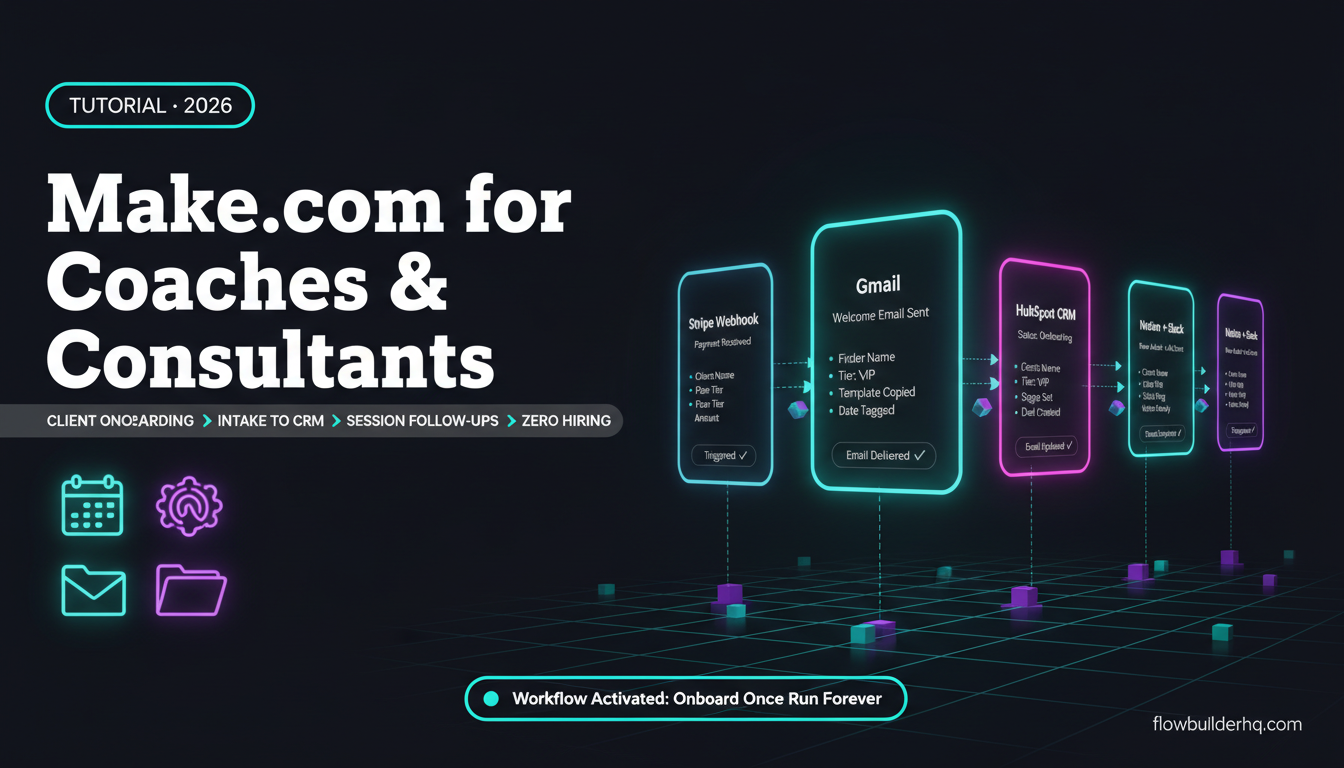
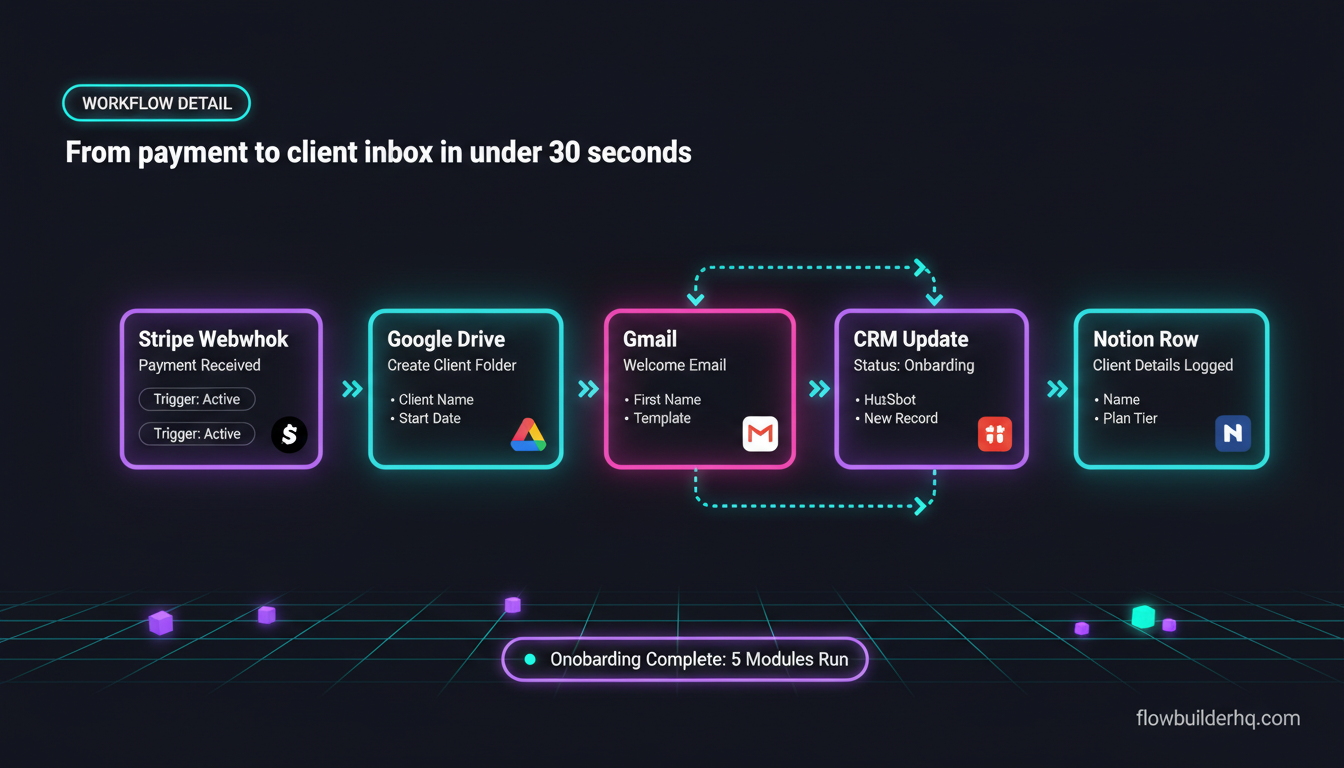
This is the single highest-value workflow for most coaches. The trigger is a payment event — Stripe, PayPal, or your booking platform fires a webhook when someone buys. Make.com catches that webhook and immediately:
- Creates a client folder in Google Drive (named with the client’s name and start date)
- Copies your intake form template into that folder
- Sends a personalized welcome email via Gmail or MailerLite
- Adds the client to your CRM with status “Onboarding”
- Creates a Notion or Airtable row with their details
- Optionally sends a Slack or SMS notification to yourself
The whole thing runs in under 30 seconds from payment to the client’s inbox. If you’ve been doing this manually, that’s 20-40 minutes back per new client. For a full build walkthrough, the Make.com guide for freelancers and consultants covers the onboarding scenario in more detail. You can also look at how the same onboarding flow works in n8n if you want to compare approaches.
2. Intake Form → CRM → Task Creation
Typeform, Tally, or Jotform — when a new client submits their intake form, Make.com parses the responses and distributes them where they need to go. It can push key fields into your CRM (HubSpot free tier works here, or ActiveCampaign), create a task in your project tool (Notion, Asana, ClickUp), and send you a summary email formatted the way you want it.
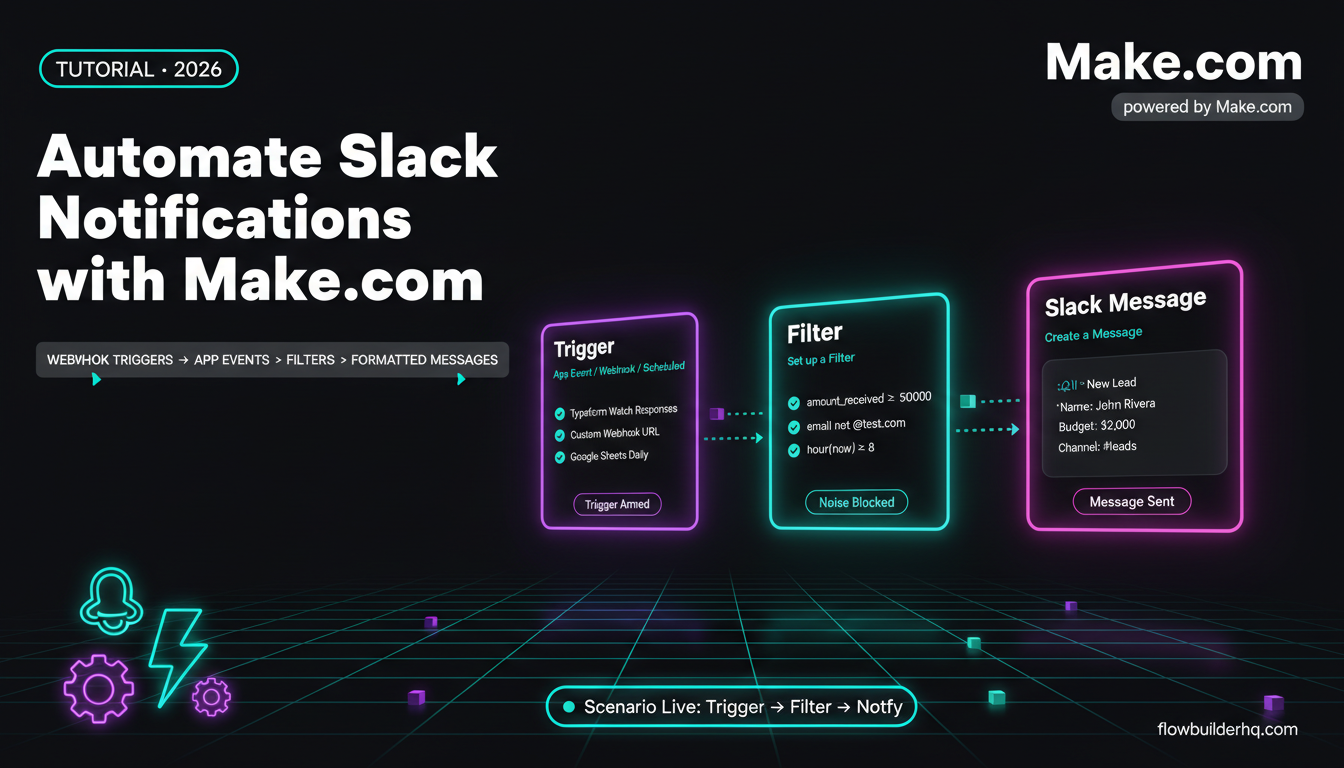
The important thing here is the filter step. Make.com lets you add conditions mid-scenario: “only proceed if the form answer for ‘budget’ is above $X.” That single capability replaces a lot of manual triage. For context on setting up HubSpot as your CRM in this kind of workflow, this HubSpot setup tutorial covers the basics without unnecessary complexity.
3. Session Follow-Up and Accountability Sequences
After each coaching session, you need to send a recap, possibly a homework reminder a few days later, and a check-in before the next call. Make.com can trigger this sequence off a calendar event — specifically, when a Google Calendar event with a certain tag ends, the scenario fires.
The sequence looks like: session ends → wait 2 hours → send recap email (pulling from a template with the client’s first name) → wait 3 days → send the homework reminder → wait 4 more days → send the pre-session prep reminder. You configure the waits using Make.com’s built-in sleep/delay module. No third-party tool required.
For more on how to build the email follow-up piece specifically, this email follow-up automation guide gives you the exact module setup.
4. Contract and Proposal Tracking
If you use DocuSign, PandaDoc, or HelloSign, Make.com can watch for a “document signed” webhook and automatically update your CRM status, move the client from “Proposal Sent” to “Active,” and trigger the onboarding scenario above. This eliminates the manual status update that otherwise falls through the cracks when you’re busy.
Make.com’s integration library includes native modules for all three of those e-signature tools, so you’re not writing custom API calls — just filling in fields in a visual interface.
5. Monthly Reporting and Invoicing
Retainer clients need invoices on a schedule. Make.com can trigger on a date — first of the month, for example — pull client data from Airtable or a Google Sheet, generate an invoice via Stripe or a Google Doc template, and email it automatically. If you want to see how the invoicing side works end-to-end, this Make.com invoicing workflow covers Stripe and PayPal connections in detail.
Monthly client reports follow the same pattern: pull data from wherever it lives (Google Analytics, a spreadsheet, your project tool), format it, and email it. This kind of workflow is covered thoroughly in the client reporting automation guide.
Make.com Pricing for Coaches and Consultants
Here’s the honest picture for a typical solo coaching business:
| Plan | Price | Ops/Month | Right For |
|---|---|---|---|
| Free | $0 | 1,000 | Testing workflows, fewer than 5 active clients |
| Core | $9/mo | 10,000 | Most solo coaches, 5-20 clients, moderate automation |
| Pro | $16/mo | 10,000 + priority execution | Consultants with high-volume intake or complex scenarios |
| Teams | $29/mo | 10,000 shared | Small teams with multiple operators |
For most coaches running 3-5 active workflows with 10-15 clients, the Core plan at $9/month covers it. Operations add up faster than you’d expect once you have 5+ active scenarios, so run a test week and check your ops count before committing. The full Make.com pricing breakdown explains exactly how credits and operations work so you don’t hit surprise overages.
What Make.com Does NOT Do Well Here
Being honest about the limitations matters, especially if you’re evaluating this seriously:
Native scheduling/calendar is missing. Make.com has no built-in meeting scheduling. You’ll connect it to Calendly, Acuity, or Google Calendar — it doesn’t replace them. It sits alongside them.
Error handling takes real attention. When a module fails mid-scenario — say, Google Drive throws a permission error — Make.com stops the scenario at that step. You get an email notification, but fixing it means going back in and re-running the incomplete execution. For a high-stakes onboarding scenario, you need to build in error routes from the start, not as an afterthought.
No built-in client portal. Coaches who want clients to see session notes, progress, and documents need to build that elsewhere (Notion, Softr, or a dedicated platform). Make.com moves data; it doesn’t host it for your clients.
The learning curve is real for complex logic. Simple linear scenarios (A fires B fires C) are genuinely fast to build. Multi-branch scenarios with error routes and custom API calls take more time. If you’ve never built in Make.com, budget a few hours for your first real workflow, not 20 minutes.
If you’re weighing Make.com against alternatives before committing, the Make.com alternatives comparison covers the realistic options for service businesses in 2026.
Make.com vs. Zapier for Coaching Businesses
The practical difference: Zapier is easier to start but punishes growth. At low task volumes, its Starter plan ($19.99/month for 750 tasks) is actually more expensive than Make.com Core ($9/month for 10,000 ops) for comparable work. And Zapier’s conditional logic — “Paths” — is more limited than Make.com’s router and filter modules.
For coaching businesses specifically, where onboarding scenarios might touch 8-10 modules per execution, Zapier’s task counting gets painful fast. One client onboarding sequence in Zapier might consume 10 tasks. In Make.com, that same scenario uses 10 ops — at a fraction of the cost per unit. The detailed comparison is in this Make.com vs Zapier breakdown for solopreneurs.
Adding AI to Your Coaching Workflows
Make.com connects natively to OpenAI and has growing support for Claude via HTTP modules. For coaches, this opens up things like:
- Auto-generating a session recap from your notes using an AI module mid-scenario
- Classifying intake form responses to route clients to different onboarding tracks
- Drafting a personalized follow-up email based on session notes, then sending it for your review before it goes out
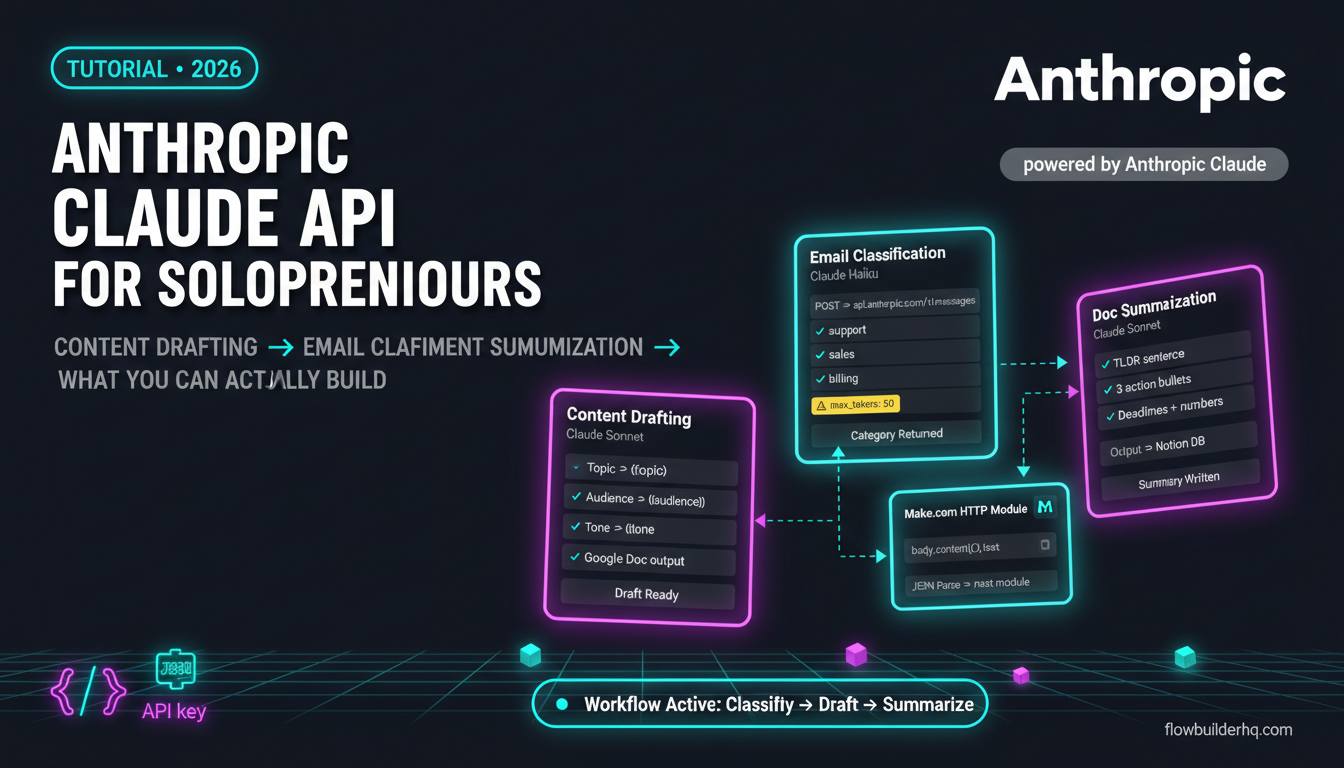
The AI piece requires some prompt engineering but no coding. Make.com passes text to the API, gets a response back, and you use that response as a variable in the next module. For deeper context on using AI inside automation workflows, this guide on Claude AI for business automation shows how to wire it up in practice. The OpenAI platform documentation is the authoritative reference if you’re configuring API calls directly.
Getting Started: The Right First Workflow
Don’t try to automate everything at once. The right first workflow for a coach or consultant is the one that hurts most manually right now. Nine times out of ten, that’s client onboarding.
Here’s the fastest path to a working first scenario:
- Create a free Make.com account
- Set up a Stripe webhook or a Typeform submission as your trigger
- Add a Gmail module to send a welcome email — use a template you’ve already written
- Add a Google Drive module to create the client folder
- Test with a real (or test-mode) submission
- Let it run for a week before building the next scenario
The Make.com official scenario documentation is genuinely useful for understanding module configuration when you hit something unfamiliar. Once you’re comfortable with a linear flow, add conditions and error routes.
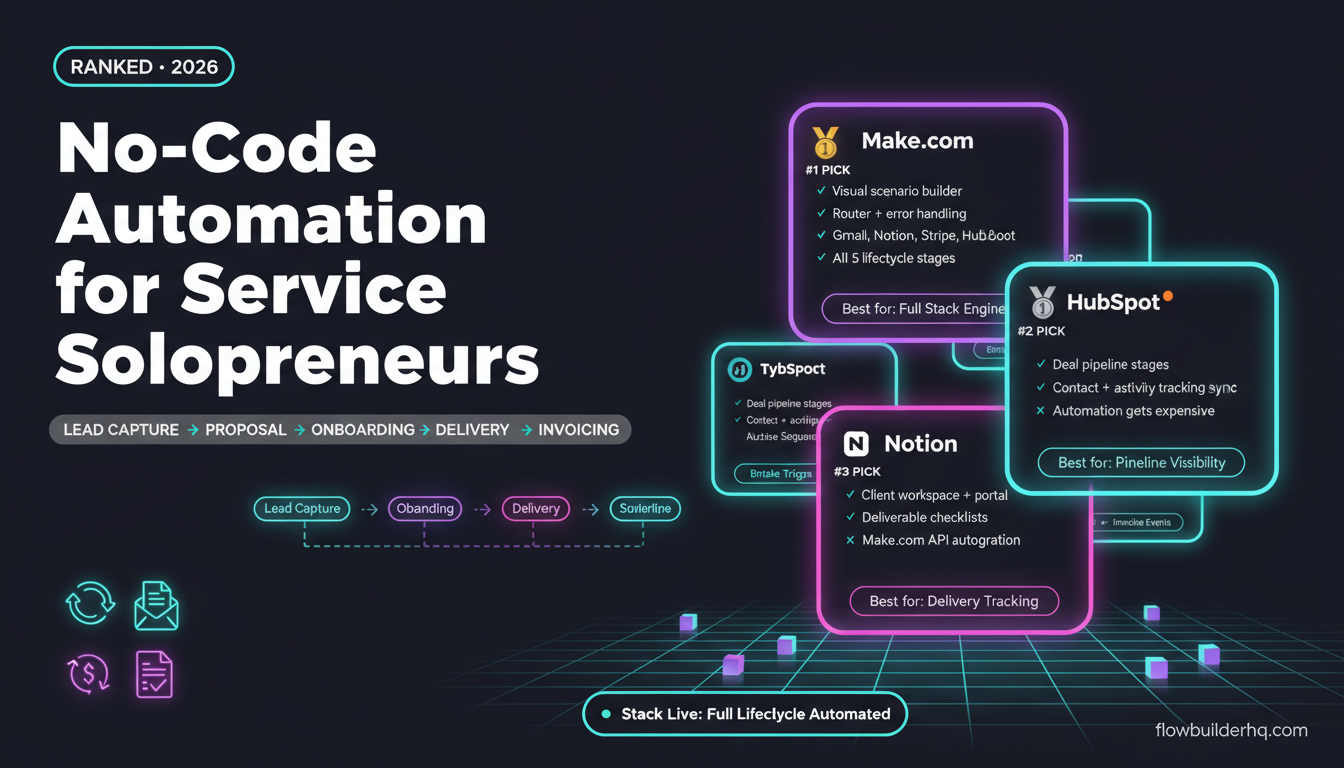
If you want to compare Make.com against the broader field of no-code tools before choosing, this no-code automation tools ranking gives you an honest stack-rank for 2026.
Who Should Use Make.com for Their Coaching Business
Good fit: Solo coaches or consultants with a repeatable client workflow, at least 3-5 new clients per month, and a willingness to spend 3-5 hours building their first scenarios. If you’re already using tools like Stripe, Typeform, Google Workspace, and a CRM, Make.com connects all of them cleanly.
Not a good fit: If your client process changes significantly with every engagement, automation won’t stick — there’s nothing consistent to automate. Also not the right tool if you want something with zero learning curve; for that, Zapier’s simpler UI might serve you better for basic single-step automations even at higher cost.
Ready to stop doing this manually? Try Make.com free — the free plan is real and enough to build and test your first two or three workflows before you spend anything.