Task Automation Ideas for Solopreneurs Who Hate Repetitive Work (You’re Doing 3 of These Manually Right Now)
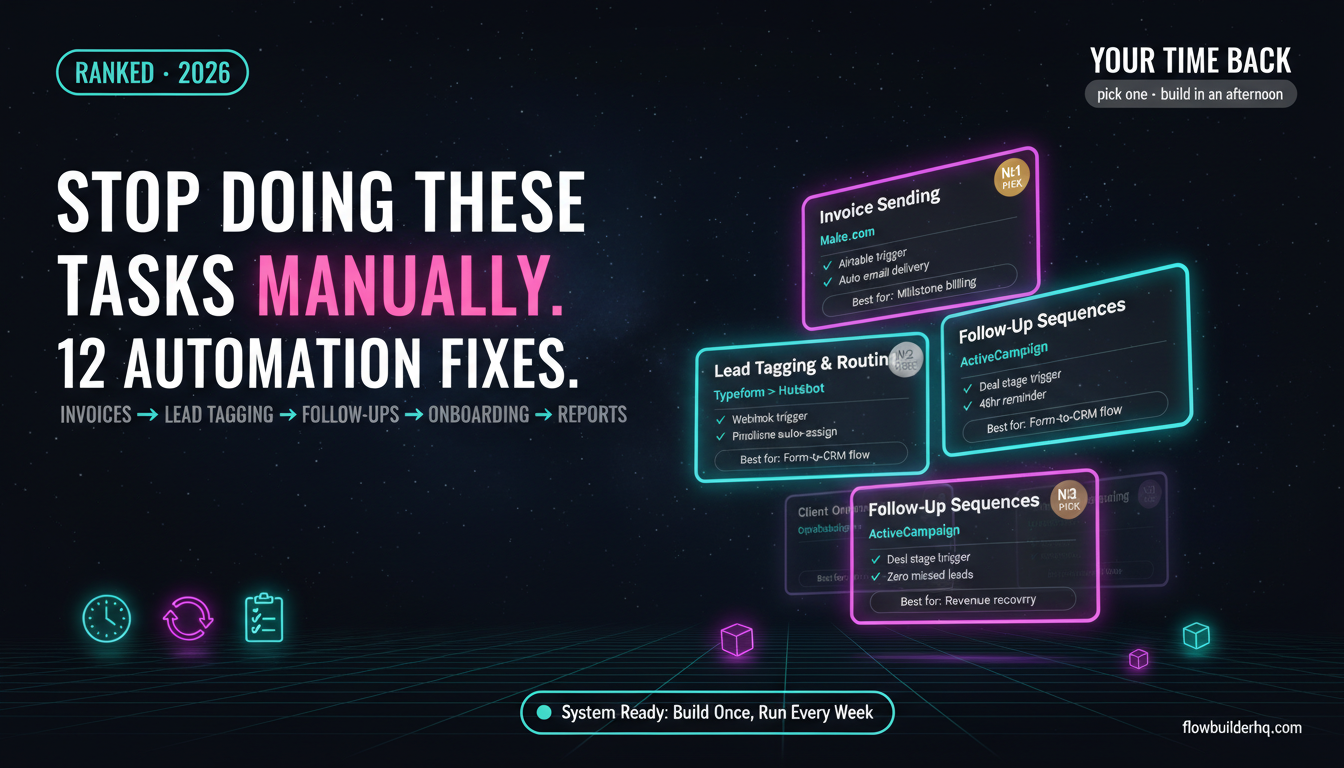
You’re doing at least 3 of these manually right now. Not because you’re disorganized — because nobody sat you down and showed you a specific task with a specific fix. Most “automate your business” content talks about tools. The task automation ideas for solopreneurs talks about tasks: the exact repetitive work eating your hours, and which tool handles each one best.
These aren’t hypothetical. They’re the real operational tasks that show up every week in a solopreneur’s business — invoicing, follow-ups, reporting, lead management — and they all have working automation solutions that take an afternoon to set up, not a dev team.
Twelve tasks. Twelve fixes. Pick the ones that match your pain right now.
1. Sending Invoices After a Project Milestone
Every time you finish a deliverable, you switch to your invoicing app, fill in the details, attach the PDF, and send. That’s 10-15 minutes per invoice, and it’s entirely mechanical. If your project management tool (Airtable, Notion, Trello) has a status field, you can trigger invoice creation automatically the moment you mark a task “complete.”
Best tool: Make.com — watch a field change in Airtable or Notion, generate the invoice via Stripe or a PDF API, and send it via email. The full build is covered in our guide to automating invoicing with Make.com.
2. Social Media Scheduling From a Content Doc
You write posts in a Google Doc or Notion page, then manually paste them into Buffer, Later, or your scheduler of choice. Every. Single. Time. The copy-paste shuffle alone can eat an hour on content days.
Build a scenario that watches a database for posts marked “ready to schedule,” pulls the copy and image URL, and posts directly to your scheduling tool via its API — or posts to platforms that accept direct API calls (LinkedIn, Facebook Pages, Instagram via a buffer layer). For a full walkthrough, check out how to automate social media posting with Make.com.
Best tool: Make.com (Core plan, $9/mo). Ready-made scenario templates for social scheduling already exist — you don’t need to build from scratch.
3. Tagging and Routing Inbound Leads
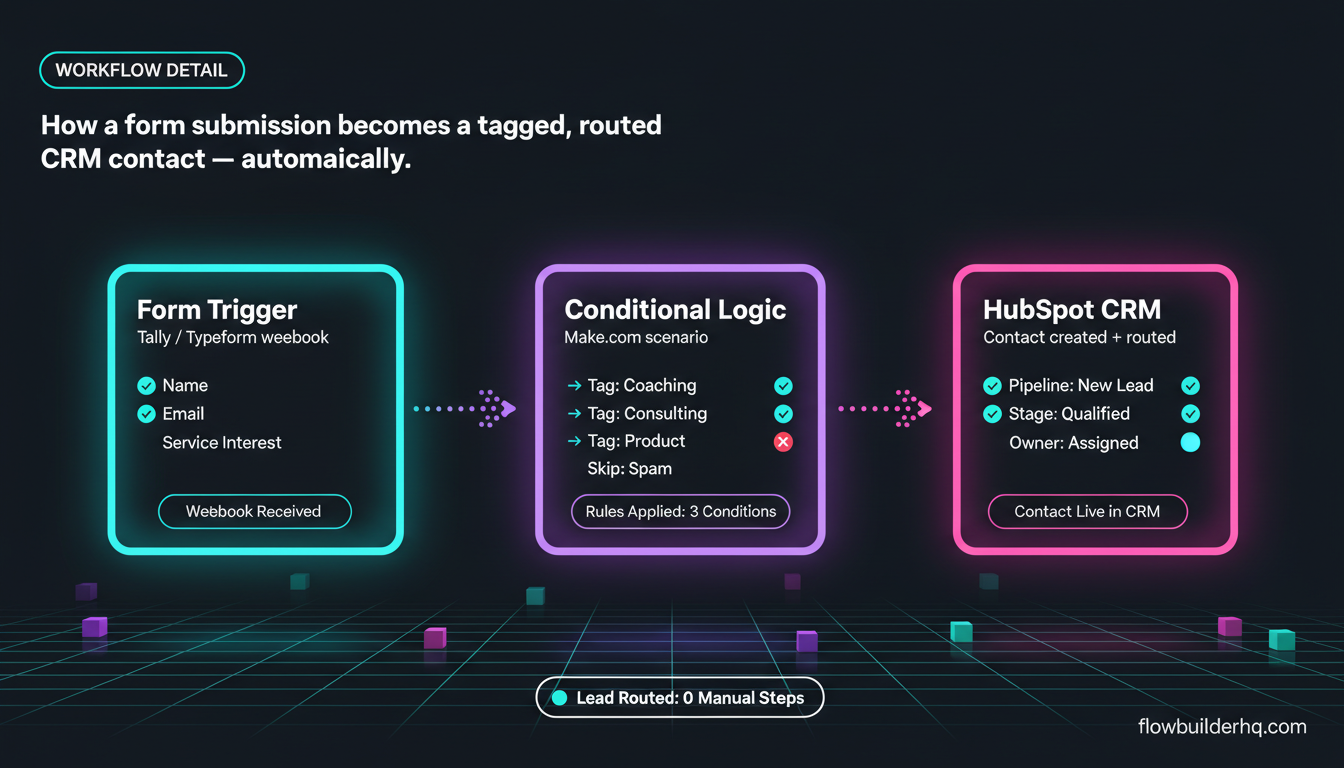
Someone fills out your contact form. You open your CRM, create a contact, add tags based on what they said, and route them to the right pipeline stage. If you’re getting more than 5 leads a week, this is a real time sink — and the manual version introduces errors (wrong tags, missed follow-ups).
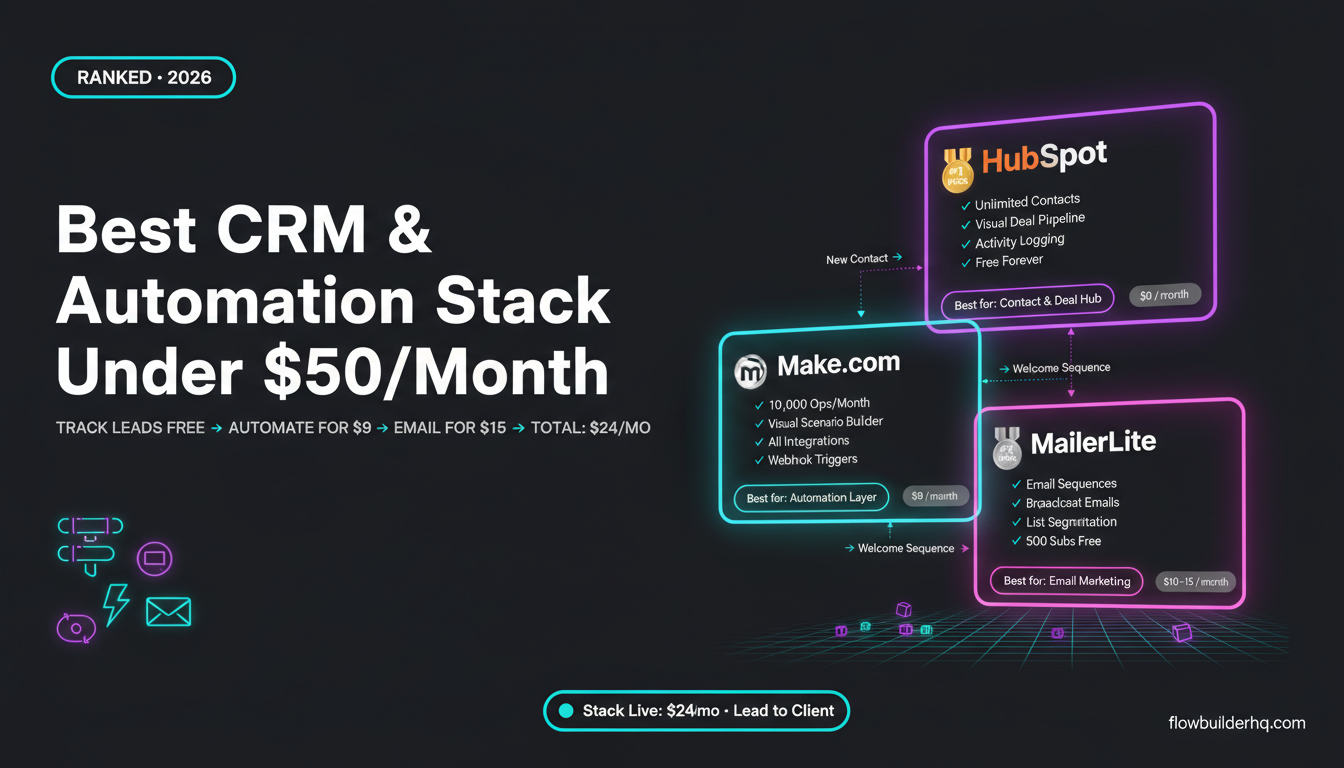
A webhook from your form tool (Typeform, Tally, Gravity Forms) can trigger a scenario that creates the contact in HubSpot or your CRM of choice, applies conditional tags based on form answers, and assigns them to the correct pipeline stage automatically.
Best tool: Make.com for complex conditional logic. If your CRM is HubSpot, our tutorial on connecting Make.com to HubSpot shows the exact setup. For simpler tagging with fewer conditions, Albato handles form-to-CRM connections without building a full scenario.
4. Following Up With Leads Who Haven’t Responded
You send a proposal. Three days pass. You forget to follow up. The deal dies. This is the most expensive manual task on this list — not in hours, but in revenue.
Set a trigger: if a deal stage hasn’t moved in X days, send a templated follow-up email automatically. You can build this entirely inside ActiveCampaign’s automation builder, or wire it through Make.com if your email tool doesn’t have native automation logic. The step-by-step build is in our post on automating email follow-ups with Make.com.
Best tool: ActiveCampaign has this built in. Make.com works as the orchestration layer if you’re using a simpler email tool.
5. Sending Proposals After a Discovery Call
You finish a call, take notes, and then spend 30 minutes building a proposal doc with the same structure you use every time. The variable parts are the client name, scope bullet points, and price. Everything else is template.
Trigger the proposal build from a form you fill in right after the call — 2 minutes of input generates a full PDF proposal and emails it to the client automatically. Our full workflow guide covers automating proposal sending with Make.com, including the PDF generation and email delivery steps.
Best tool: Make.com with a PDF generation module (Pdfmonkey or DocuPilot work well as the document layer).
6. Weekly Performance Reports
Every Monday you pull numbers from three different places — ad spend, email open rates, revenue — paste them into a Google Sheet or doc, and send the summary to yourself or a client. That’s 30-60 minutes of data shuffling that produces zero insight by itself.
Wire each data source to Make.com with scheduled triggers, aggregate the numbers into a pre-built template, and deliver the report automatically. The build process is detailed in our guide to automating client reporting with Make.com.
Best tool: Make.com (Core or Pro depending on your data sources). If you’re already using n8n for other workflows, it handles this well too — especially if your data sources need custom API calls.
7. Onboarding New Clients
New client signs a contract. You manually send a welcome email, create a project folder, add them to your project tool, set up a shared doc, and invite them to your portal. That’s 6-8 steps you execute the same way every time a deal closes.
One webhook from your contract tool (DocuSign, PandaDoc, HelloSign) fires all of those steps in sequence. Our full build is in the client onboarding automation guide for solopreneurs — it covers folder creation, welcome emails, and CRM updates in a single Make.com scenario.
Best tool: Make.com. Complex multi-step sequences are where Make.com’s visual builder earns its subscription.
8. Republishing and Repurposing Content
You publish a blog post, then manually write a LinkedIn summary, pull a quote for Twitter/X, and draft an email newsletter teaser. Same content, three different formats, each written by hand.
Build a workflow: new blog post published → send content to an AI module (Claude or GPT-4o) with a prompt for each format → output posts to a Google Doc or scheduling queue. The full workflow is in our post on automating content repurposing with Make.com. If you want the AI layer explained first, using Claude for business automation breaks down how to write prompts that actually produce usable output.
Best tool: Make.com with an OpenAI or Anthropic Claude module.
9. Moving Form Responses Into a CRM or Spreadsheet
You run a workshop, collect RSVPs via a form, and then manually copy names and emails into your CRM or mailing list. Or you get contact form submissions and re-enter them into Airtable by hand. Both are unnecessary in 2026.
Any major form tool connects to any major CRM or spreadsheet tool via automation. This is the simplest task on this list — no conditional logic needed, just a direct pipe.
Best tool: Albato handles this with a point-and-click connector setup. Pro plan pricing varies — check the Albato site for current rates. For anything more complex (conditional routing, deduplication), Make.com is the better choice. See our breakdown of what Make.com actually costs before committing to a plan.
10. Sending Contract Reminders
You send a proposal or contract, and then manually check every day or two to see if the client has signed. If they haven’t, you write a “just checking in” email. This can go on for a week before you remember to follow up.
Set a time-based trigger: if the contract status hasn’t changed to “signed” within 48 hours of sending, fire a reminder email automatically. Most e-signature tools have webhooks you can watch.
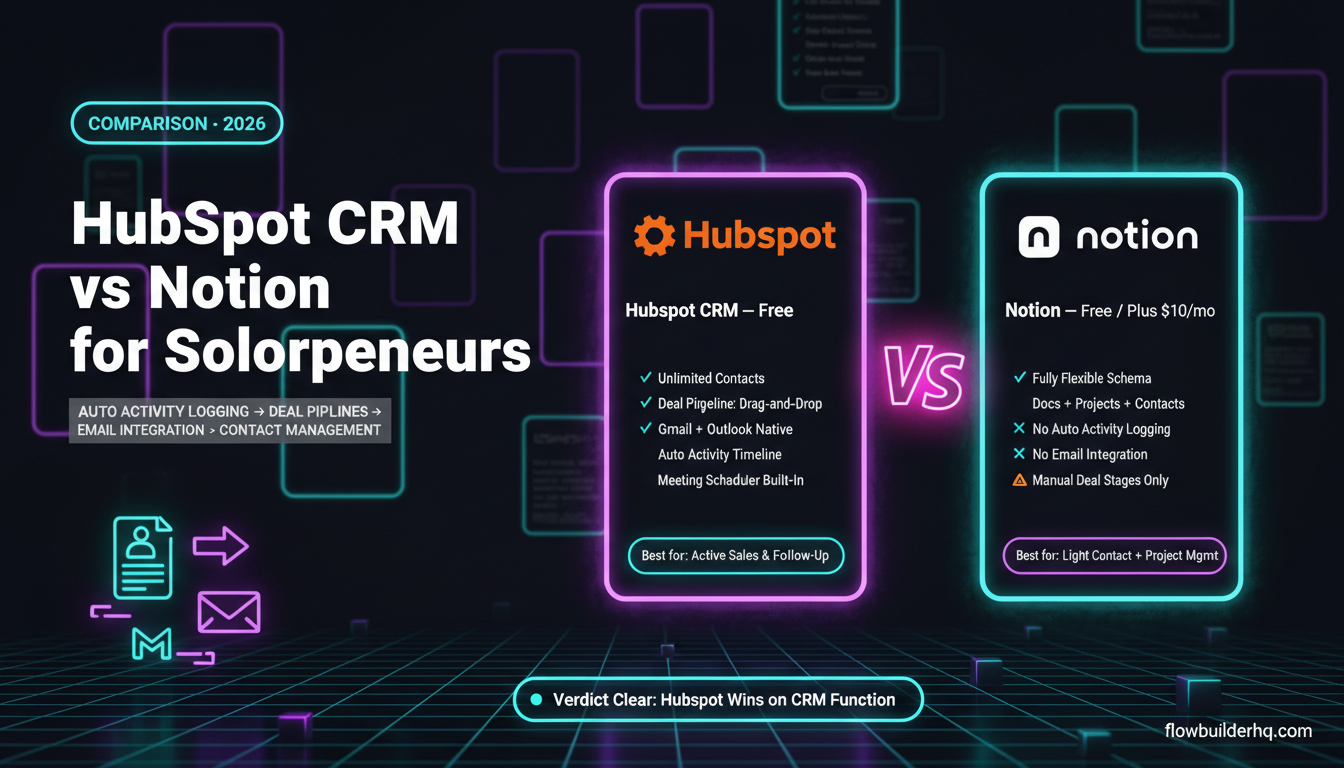
Best tool: Make.com with your e-signature tool’s webhook. If you’ve already set up a HubSpot pipeline, HubSpot’s free pipeline can handle deal-stage-based follow-up emails without needing a third tool.
11. Posting New Blog Content to Multiple Channels
Blog post goes live. You announce it on LinkedIn, email your list, post to your Facebook group, and pin it on Pinterest — all manually, sometimes days apart. The distribution is inconsistent and slow.
An RSS trigger or WordPress webhook fires the moment a post publishes. Your automation scenario grabs the title, excerpt, and featured image URL, then queues posts for each distribution channel. For coaches and consultants doing this regularly, our post on Make.com for coaches and consultants covers exactly this kind of multi-channel workflow.
Best tool: Make.com. If you’re running an ecommerce operation and distributing product content instead of blog posts, the Make.com ecommerce automation guide applies the same logic to product announcements.
12. Lead Generation and List Building
You search LinkedIn, export a CSV, clean it, import it to your CRM, and tag contacts manually. Or you collect leads from multiple sources and reconcile them by hand once a week. Either way, it’s hours of work for a task that’s almost entirely mechanical.
Automation can watch a specific trigger (new connection accepted, form submitted, ad lead captured) and immediately add the contact to your CRM with pre-set tags, no manual import needed. For a full n8n-based build, our guide to automating lead generation with n8n covers the end-to-end capture-to-CRM workflow.
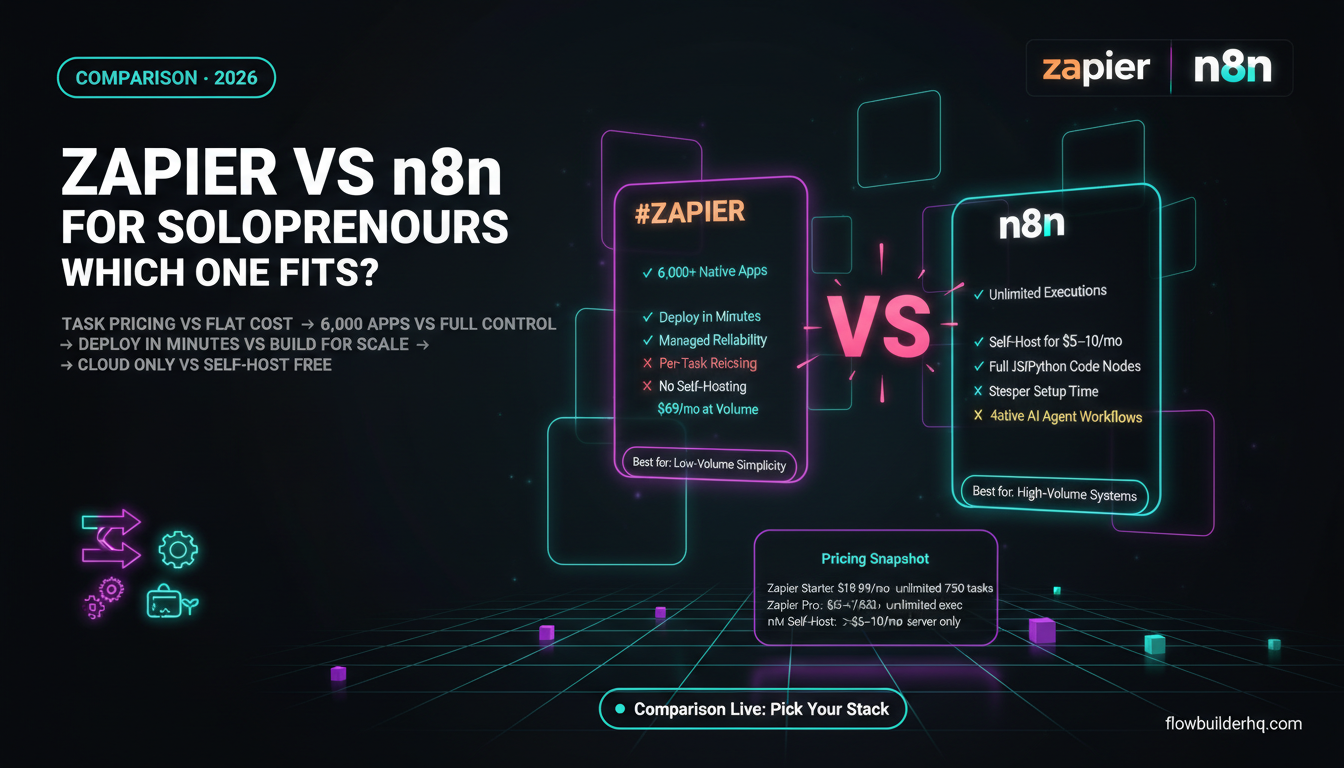
Best tool: Make.com for multi-source lead aggregation with conditional logic. n8n (self-hosted, free) if you’re comfortable with a steeper setup. See our comparison of Make.com vs Zapier if you’re still deciding on a primary automation platform — the pricing math alone makes the decision obvious at most usage levels.
How to Pick Which Task to Automate First
Don’t try to automate all twelve at once. Pick the task that meets two criteria: it happens at least weekly, and it takes more than 15 minutes each time. That’s your first automation project.
For most solopreneurs, that’s either invoice sending or lead tagging — they’re high frequency, low complexity, and the time savings show up immediately. Start with one of those, ship a working scenario in a single afternoon, and then move to the next one.
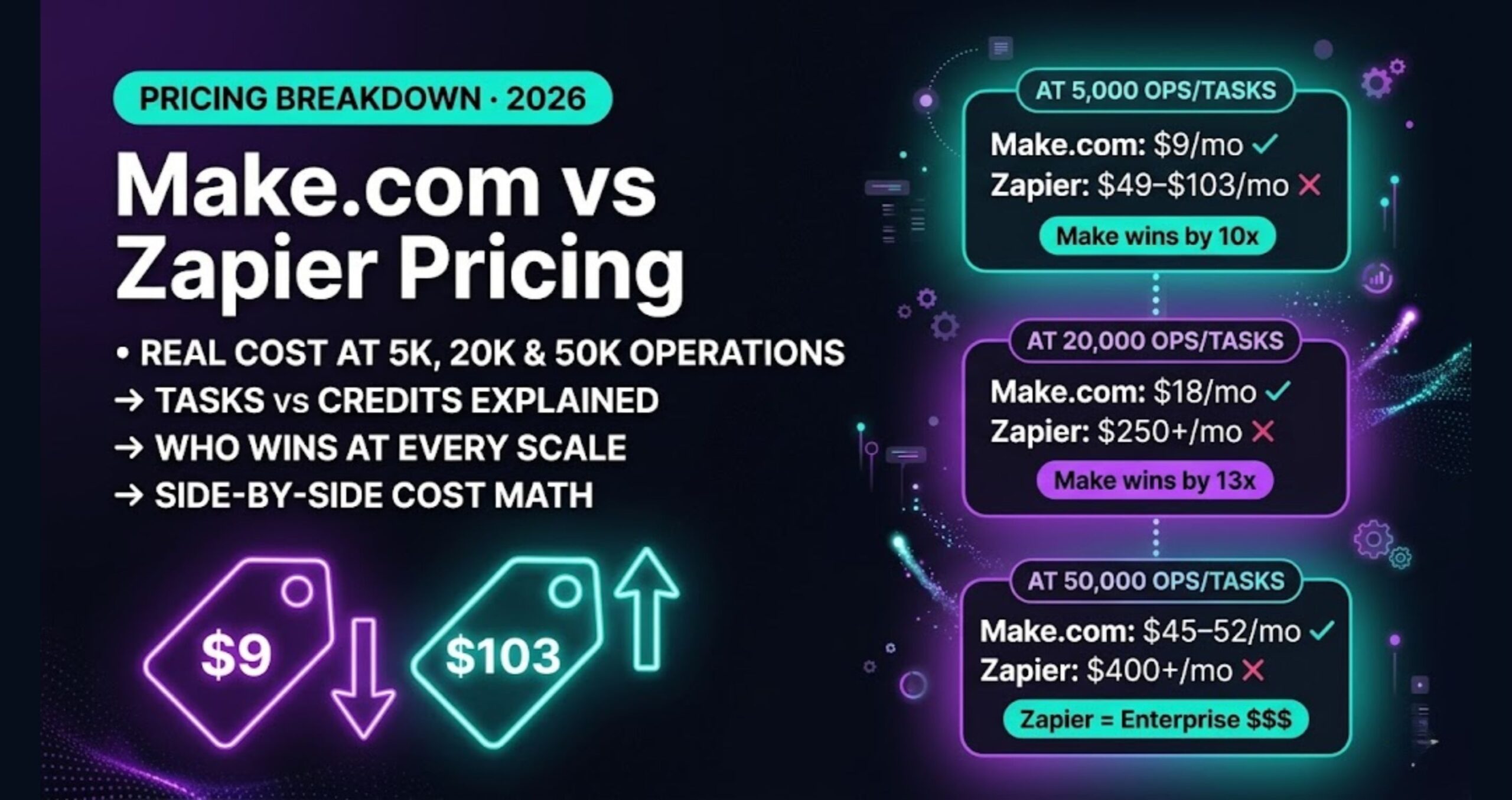
If you want a platform overview before you start building, our rundown of the best no-code automation tools for solopreneurs covers the current options with honest assessments. And if you want to see Make.com’s full cost picture before committing, the Make.com vs Zapier pricing comparison shows what you actually pay at different operation volumes.
The tasks above aren’t exotic. They’re the standard operating work of running a solo business. The only question is whether you keep doing them by hand or spend one afternoon setting up a scenario that handles them while you focus on work that actually requires you.
Start with Make.com’s free plan (1,000 operations/month) — it’s enough to validate your first two or three automations before you pay anything. Create your free Make.com account here and pick one task from this list to automate this week.
Building this yourself? Get the workflow pack.
5 ready-to-import n8n workflows — lead capture, invoicing, content repurposing, onboarding, social posting. Free.