CRM Automation for Freelancers: How to Follow Up Without Thinking About It
The follow-up you never send is the deal you never close. Not because you don’t care — because you forgot. You were heads-down on a deliverable, the prospect slipped into the “I’ll get to that later” pile, and later never came. That’s not a discipline problem. That’s a systems problem, and CRM automation for freelancers is the fix.
This tutorial builds one specific scenario: a Make.com automation that watches your CRM for deal inactivity and fires a personalized follow-up email automatically. No calendar reminders. No sticky notes. No mental overhead.
We’ll use HubSpot as the CRM example and MailerLite as the email sender. If you’re on a different stack, the pattern still applies — and I’ll point out where Albato fits in at the end.
Why Freelancers Drop Follow-Ups (It’s Not Laziness)
Most follow-up advice treats this as a motivation problem. It isn’t. When you’re running every part of a business solo, your working memory is maxed out. The cognitive cost of remembering who to chase, when you last emailed them, and what you said before — that cost is real, and it compounds across 10, 20, or 30 active leads.
Automation doesn’t make you more disciplined. It removes the task from the discipline bucket entirely. The scenario runs while you’re working on a client project, and the prospect gets a follow-up that reads like you remembered them personally.
If you want to understand where this fits in a broader workflow strategy, the post on what to automate first as a solopreneur is worth reading before you build anything else.
What You’re Building
Here’s the exact logic of the scenario:
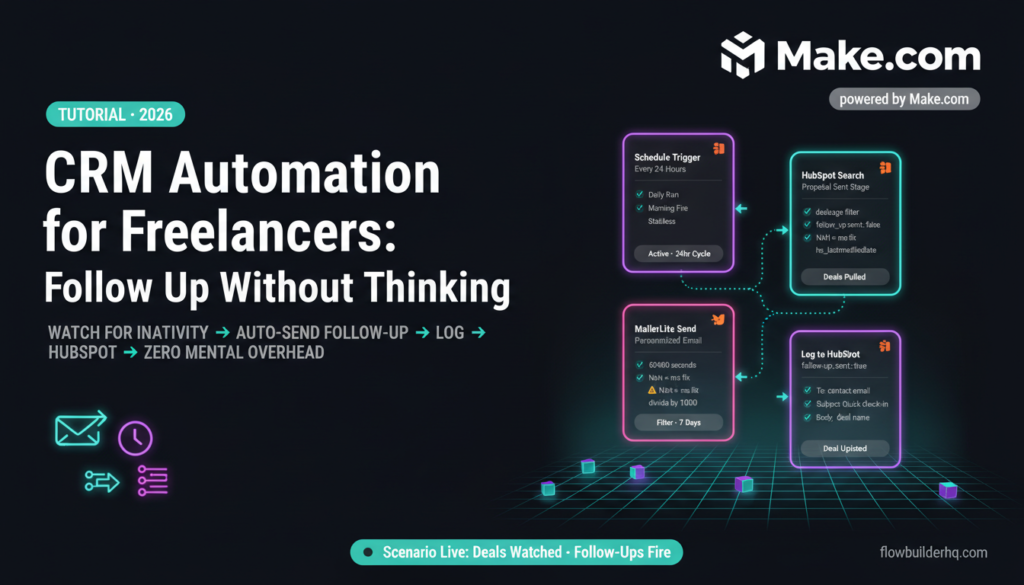
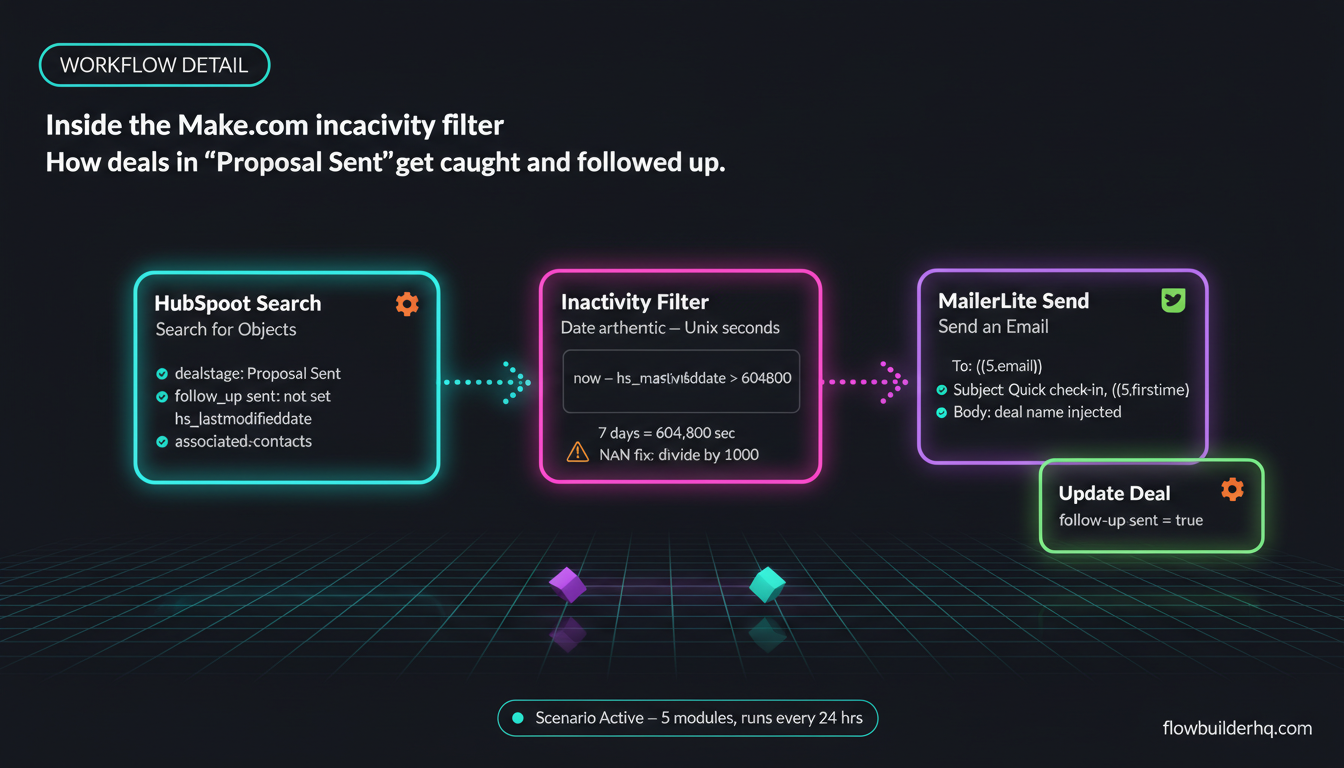
- Make.com checks your HubSpot pipeline on a schedule (every 24 hours).
- It pulls all deals in a specific stage — for example, “Proposal Sent.”
- It checks the
Last Modified Dateon each deal. - If a deal hasn’t moved in X days (you set the threshold), it triggers a follow-up email via MailerLite.
- It updates a HubSpot deal property to log that a follow-up was sent — so you don’t email them twice.
Five modules. One scenario. Runs daily without you touching it.
What You Need Before You Start
- A Make.com account (free tier works to build and test; Core at $9/mo once you schedule it)
- HubSpot with deals set up in a pipeline — if yours isn’t configured yet, the post on setting up a HubSpot sales pipeline walks through the setup
- A MailerLite account with transactional email or automation access
- A custom deal property in HubSpot called
follow_up_sent(type: checkbox or date) — create this in HubSpot Settings → Properties → Deal Properties
Step 1: Create a Scheduled Trigger
Open Make.com and create a new scenario. Add a Schedule trigger as your first module. Set it to run every 24 hours at a time that makes sense — early morning works well so follow-ups land during business hours.
The Schedule module is stateless, meaning it just fires the scenario. It doesn’t pass any data forward. That’s fine — the next module does the data pulling.
Step 2: Pull Deals from HubSpot
Add the HubSpot CRM → Search for Objects module. Configure it as follows:
- Object Type: Deals
- Filter:
dealstageequals[your stage ID for "Proposal Sent"] - Additional filter:
follow_up_sentis not set (or is false) - Output fields:
dealname,hs_lastmodifieddate,hubspot_owner_id,associated_contacts,hs_object_id
To find your stage ID: go to HubSpot → Settings → Deals → Pipelines, hover over the stage, and copy the ID from the URL. It’s a long numeric string.
For the full picture on how Make.com connects to HubSpot, the Make.com to HubSpot integration guide covers the OAuth setup if you haven’t connected them yet.
Step 3: Filter by Inactivity Window
This is where most people mess up. HubSpot’s hs_lastmodifieddate updates on any deal change — including when you add a note. If you rely on it alone, you’ll catch deals that were just touched. What you actually want is deals that haven’t had any meaningful activity.
Add a Filter module after the HubSpot search. Set the condition:
{{formatDate(now; "X")}} - {{formatDate(3.hs_lastmodifieddate; "X")}} > 604800That’s 604,800 seconds — seven days. Adjust the number for your preferred window (3 days = 259,200, 14 days = 1,209,600).
The formatDate function converts both timestamps to Unix format (seconds since epoch) so Make.com can subtract them. This is the cleanest way to handle date arithmetic in Make without using a separate Tools module.
Common error here: If you see NaN or the filter never passes, it’s usually because hs_lastmodifieddate came through in milliseconds from HubSpot, not seconds. Fix: wrap it in {{divide(3.hs_lastmodifieddate; 1000)}} before subtracting.
Step 4: Get the Associated Contact’s Email
The deal record in HubSpot doesn’t directly contain the contact’s email — you need to fetch it separately. Add a HubSpot CRM → Get a Contact module and pass the contact ID from the deal’s associated contacts array.
Map: {{first(3.associations.contacts.results).id}}
This pulls the first associated contact on the deal. If your deals commonly have multiple contacts and you want to email all of them, you’d use an Iterator here instead — but for most freelancers, one contact per deal is the standard.
From this module, grab: email, firstname, lastname.
Step 5: Send the Follow-Up via MailerLite
Add a MailerLite → Send an Email module (or use the HTTP module if you prefer MailerLite’s transactional API directly — the result is the same).
Configure:
- To:
{{5.email}} - Subject:
Quick check-in, {{5.firstname}} - Body: Write a plain-text email referencing the deal name. Keep it short — 3 sentences maximum. Something like: “Hey [firstname], just checking in on [dealname] — still happy to answer any questions before you decide. No pressure either way. Let me know if the timing has changed.”
Personalization tokens ({{5.firstname}}, {{3.dealname}}) pull from earlier modules. Make sure your module numbering matches — the numbers in double braces refer to the module position in your scenario.
If you want a deeper look at structuring email follow-up scenarios, the post on automating email follow-ups with Make.com covers the sequencing logic in more detail.
Step 6: Log the Follow-Up Back to HubSpot
After the email sends, add a HubSpot CRM → Update a Deal module. Set the follow_up_sent property to true (or today’s date if you used a date field).
This is the step most people skip, and it’s the step that prevents the scenario from emailing the same prospect every day. Without it, tomorrow’s scheduled run will find the same deal, pass the same filter, and send another email. That gets awkward fast.
You can also add a HubSpot CRM → Create a Note module here to log “Automated follow-up sent on [date]” inside the deal record. It keeps your CRM history clean and means you’ll know what happened if you ever look back at the deal manually.
Step 7: Test the Scenario End-to-End
Before activating, test with a real deal that should trigger. In Make.com, click Run Once. Watch each module’s output bubble appear. Verify:
- The HubSpot search returns at least one deal
- The filter passes (check the date math output)
- The contact lookup returns a valid email
- MailerLite shows a successful send
- HubSpot deal shows
follow_up_sent = true
If the filter module shows “0 bundles passed,” your date arithmetic is likely the issue. Check module 3’s hs_lastmodifieddate output and confirm whether it’s in milliseconds or seconds before adjusting the formula.
For a thorough overview of what to do when Make.com scenarios break mid-run, the Make.com error handling tutorial is worth keeping open in a tab while you test.
CRM Automation for Freelancers: The Logic That Makes It Actually Work
The part that matters isn’t the tech — it’s the behavioral logic baked into the design. Three principles are doing the heavy lifting here:
1. Time-based rather than action-based triggering. You’re not responding to something the prospect did. You’re responding to something they didn’t do: engage. This catches the deals that go quiet, which is exactly the follow-up category that falls through the cracks manually.
2. State management via CRM properties. The follow_up_sent flag is a simple idempotency check. It prevents duplicate sends and keeps the scenario from compounding its own work. Any automation that reads and writes to the same records needs this kind of guard. This is one of the most common automation mistakes — building a trigger with no memory.
3. Personalization from live data, not templates. Because Make.com pulls the deal name and contact name at runtime, every email references the actual deal. It reads like you wrote it. That’s the difference between an automated follow-up that gets a reply and one that gets marked as spam.
Extending the Scenario
Once the base scenario works, a few additions that are worth building:
Multi-stage coverage: Clone the scenario and point it at a different deal stage — “Intro Call Done” or “Contract Sent.” Each stage can have its own inactivity window and its own email template. The logic is identical; only the HubSpot filter and email copy change.
Slack alert instead of (or alongside) email: Add a Slack module that pings you in a private channel when a follow-up fires. The post on automating Slack notifications with Make.com covers how to format those messages usefully.
Conditional email content based on deal value: Use a Router module to split deals above and below a deal value threshold, then send different email copy for each branch. High-value prospects get a more personal note; smaller deals get a lighter touch.
If You’re Not Using HubSpot or MailerLite
The scenario architecture above transfers to any CRM/email combination that Make.com supports. If you’re using a CRM or email platform that doesn’t have a native Make.com module — or if you’re already paying for another integration tool — Albato is worth checking. It covers integrations that Make.com sometimes misses, particularly for European and regional SaaS tools, at Pro $25/mo or Business $59/mo. The same scenario logic applies; you’d just map the modules to Albato’s equivalents.
For a broader look at which CRM and automation combinations make financial sense, the post on the best CRM and automation stack under $50/mo breaks down the real cost of different configurations.
Pricing Reality Check
Running this scenario daily costs very little at Make.com’s operation count. Each scenario run uses roughly 5–7 operations per deal processed. If you have 20 active deals checked daily, that’s 140 operations per day — under 4,300/month. Make.com’s free tier covers 1,000 ops/month; Core at $9/mo covers 10,000. For most freelancers, Core is the right tier.
HubSpot’s free CRM tier supports custom properties and deal pipelines — you don’t need a paid HubSpot plan for this to work. MailerLite’s free tier (up to 500 subscribers) includes automation access. The total cost to run this system: $9/mo.
For a full breakdown of what Make.com’s operation costs look like at scale, the post on Make.com pricing in 2026 has the numbers with no fluff.
One Scenario, Zero Mental Overhead
The follow-up problem isn’t about sending emails. It’s about maintaining awareness of 20 different conversations simultaneously while doing actual work. That’s not a task you should be doing manually — it’s pattern recognition work that a scheduled scenario handles better than you can.
Build this once. Activate the schedule. Then stop thinking about it — because you won’t need to. The automation built here for CRM automation for freelancers is the exact kind of system that removes a recurring cognitive drain permanently. If you want to see how this fits into a full client lifecycle, the post on client onboarding automation with Make.com picks up where this one leaves off.
Start with Make.com — the free tier is enough to build and test the full scenario before you spend anything.
Building this yourself? Get the workflow pack.
5 ready-to-import n8n workflows — lead capture, invoicing, content repurposing, onboarding, social posting. Free.