Make.com vs Zapier for Solopreneurs: Real Pricing Math and an Honest Pick
The Verdict First
If you run a solo operation or a small team and you’re paying for Zapier, you’re almost certainly overpaying. Make.com handles more complex workflows, costs less at realistic volumes, and doesn’t charge per task — it charges per operation. That difference isn’t semantic. It changes your monthly bill by 3x to 5x once your automations get real.
Zapier is faster to set up for dead-simple, two-step zaps. If that’s all you need, stay there. But if your workflows have conditions, loops, or more than two steps, you’ll hit Zapier’s pricing ceiling fast. This comparison is built on actual numbers from running Make.com for client workflows — not theoretical enterprise volumes.
How the Pricing Models Actually Work
This is where most comparisons get lazy. They list plan prices without explaining the unit economics. Let’s fix that.
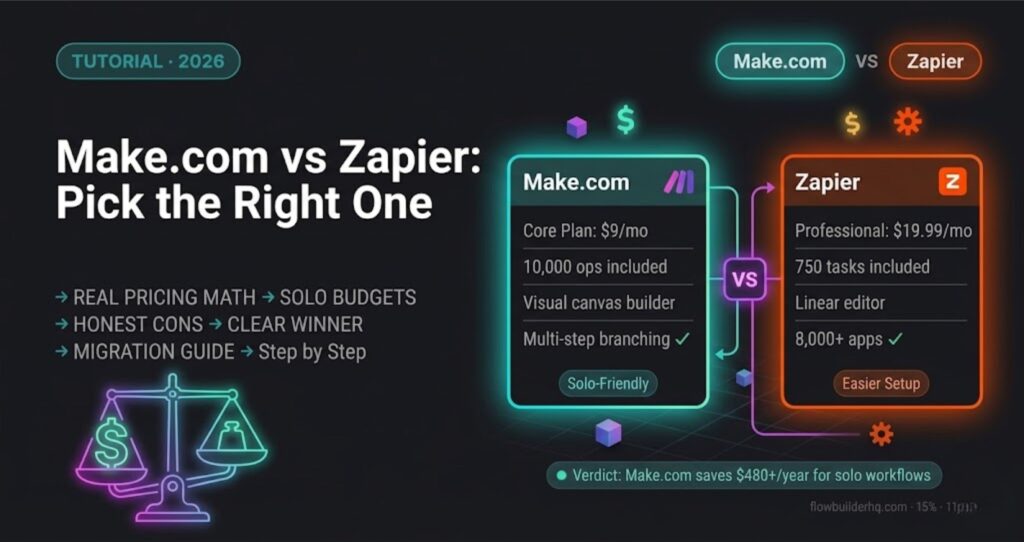
Zapier charges per task. Every time an action runs in a zap — not just the trigger, every action — that’s one task. A five-step zap burns five tasks per run. Run it 500 times a month, that’s 2,500 tasks. Zapier’s Professional plan starts at $19.99/month for 750 tasks (billed annually). You’ll blow past that in a week with any real workflow.
Make.com charges per operation. Each module execution counts as one operation. Similar unit to a task, but Make’s plans give you dramatically more of them. The Core plan at $9/month includes 10,000 operations. The Pro plan at $16/month gives you 10,000 operations with more features. Even the free plan includes 1,000 operations monthly.
Side-by-Side Pricing at Real Solo Volumes
| Scenario | Make.com Cost | Zapier Cost |
|---|---|---|
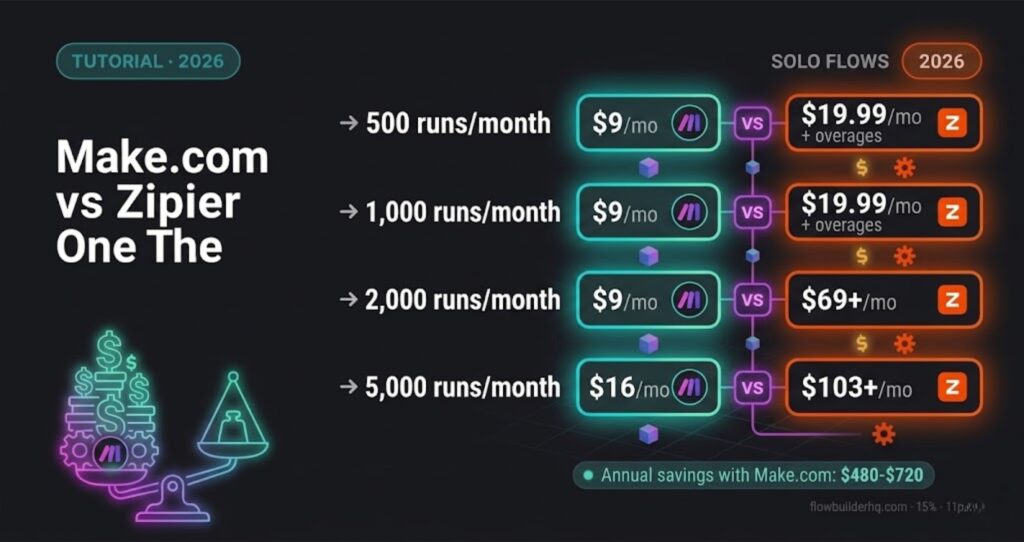
| 500 runs/month, 5-step workflow (2,500 ops/tasks) | $9/mo (Core — 10k ops) | $19.99/mo (Professional — exceeds 750 tasks, overage charges apply) |
| 1,000 runs/month, 3-step workflow (3,000 ops/tasks) | $9/mo (Core — still under 10k) | $19.99/mo + overage, or $69+/mo (Team) |
| 2,000 runs/month, 5-step workflow (10,000 ops/tasks) | $9/mo (Core — right at limit) | $69-$103/mo (Team plan territory) |
| 5,000 runs/month, 4-step workflow (20,000 ops/tasks) | $16/mo (Pro plan — 10k ops with priority execution) | $103+/mo |
Running client workflows at around 3,000–4,000 operations per month, the Make.com Core plan at $9 covers everything. the equivalent Zapier usage sits in the $20-$69 range depending on volume. That’s approximately $130-$720 per year back in your pocket for the same automation output, depending on your workflow size.
Feature Comparison: Where Each Tool Actually Wins
Workflow Builder
Make.com uses a visual canvas where you can see the full flow — branches, routers, error handlers, all of it at once. When a workflow has conditional logic (send this email if deal size is over $5k, otherwise trigger a different sequence), you build that visually and it makes sense. You can also set a scenario to run in real-time, on a schedule, or triggered by a webhook.
Zapier builds top-to-bottom in a linear list. For simple two- or three-step zaps, this is actually faster to set up. For anything with branching logic, it gets complicated fast. Multi-step paths exist but they’re nested in a way that makes debugging annoying.
Winner: Make.com for anything beyond basic. Zapier for pure simplicity.
App Integrations
Zapier connects to over 6,000 apps. Make.com is closer to 1,500 native integrations but also supports HTTP modules that let you connect to anything with an API. For most solopreneurs using standard tools — Google Workspace, Slack, Notion, HubSpot, Stripe, Typeform — both platforms have full coverage. The gap only matters if you’re using obscure niche software.
Winner: Zapier on raw app count, but the gap is irrelevant for 90% of solo workflows.
Error Handling
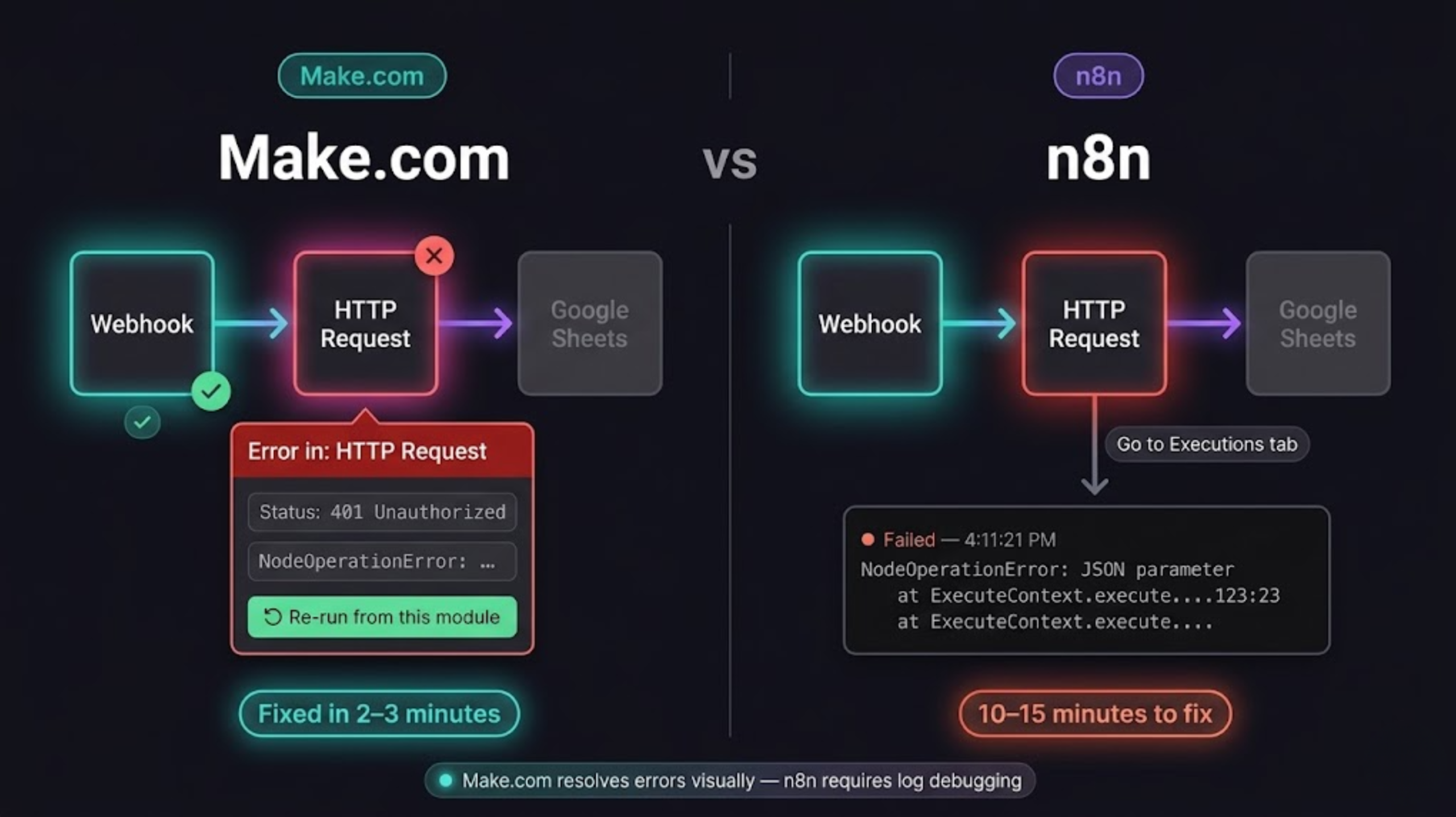
This is where Make.com genuinely pulls away. You can set error handlers on individual modules, route failures to a separate flow, and get notified with the actual error data. When a client onboarding webhook fails because a field is missing, Make tells you exactly which module failed and why. Zapier sends you a generic failure email and shows a task history log — workable, but slower to diagnose.
For automations that handle client data or money movement, error visibility matters. A broken workflow you don’t know about is a client experience problem.
Winner: Make.com
Speed and Trigger Frequency
Make.com’s free and Core plans check triggers every 15 minutes by default. Pro plan drops that to 1 minute. Zapier’s paid plans run triggers every 1–2 minutes depending on your tier, and their free plan polls every 15 minutes.
For most solopreneur use cases — onboarding a new client, sending a follow-up, routing a form submission — 15-minute polling is fine. If you need real-time triggers, both platforms support instant triggers via webhooks, which bypass polling entirely.
Winner: Zapier slightly on trigger speed at base plans. Tie at Pro/paid tiers.
Learning Curve
Zapier wins here, clearly. The linear editor, guided zap builder, and enormous library of templates mean most people can build their first automation in under 20 minutes. Make.com’s canvas is more powerful but takes longer to feel natural. Budget a few hours to get comfortable with routers, iterators, and aggregators.
That said, the Make.com learning curve pays dividends. Once you understand the structure, building complex multi-branch workflows is genuinely faster than trying to replicate them in Zapier’s nested path system.
Winner: Zapier for beginners. Make.com wins once you’re past the basics.
Real Workflows: What Each Platform Handles Best
Where Make.com Runs Better
- Client onboarding sequences — multiple conditional branches based on service tier, contract signed status, payment received
- Invoice automation — if you’re routing data between your CRM, accounting tool, and client portal, Make’s multi-module flows handle this cleanly (see how this works in detail: automate invoicing with Make.com)
- Lead routing with scoring — filter leads by source, score, or tag before sending to the right sequence
- Bulk data processing — iterating over arrays, aggregating results, and writing back to a spreadsheet or database
Where Zapier Runs Better
- Quick app connections — “when this form is submitted, add a row in Google Sheets” doesn’t need a visual canvas
- Teams that need shared access without training — Zapier’s interface is easier to hand off to a VA or contractor
- Niche app integrations — if you’re using something obscure that only has a Zapier integration
HubSpot + Automation: A Note for CRM Users
If you’re using HubSpot as your CRM, both Make.com and Zapier have solid native integrations. Make.com’s HubSpot modules cover contacts, deals, companies, and form submissions. For solopreneurs running sales and onboarding through HubSpot, Make is the better pairing because you can build multi-step deal workflows — update deal stage, trigger onboarding scenario, send welcome email, log activity — all in one scenario without task costs blowing up.
Make.com for Freelancers: Specific Wins
If you’re running a freelance business specifically, the economics get even clearer. Client intake forms, proposal follow-ups, project kickoff sequences, invoice reminders — these are exactly the workflows Make.com handles well at low cost. The full breakdown of how to structure these is in the Make.com for Freelancers post, but the short version: you can run a complete freelance automation stack on the $9/month Core plan.
Honest Cons of Make.com
This comparison recommends Make.com, but not without caveats.
- The learning curve is real. Iterators, aggregators, and routers take time to understand. Don’t expect to build a complex workflow on your first afternoon.
- Template library is thinner than Zapier’s. Zapier has thousands of pre-built zap templates. Make.com has templates but fewer of them, and they vary in quality.
- Customer support at lower tiers is slow. On the Core plan, support is email-only with no SLA. If something breaks on a Friday, you might wait until Monday. Build error notifications into your scenarios so you’re not dependent on Make’s support catching failures.
- The mobile experience doesn’t exist meaningfully. Make.com is a desktop tool. Editing scenarios on your phone is not something you want to do.
Honest Cons of Zapier
- Task pricing scales against you aggressively. As your business grows and you add more workflows, costs compound fast. There’s no ceiling until you’re on a much higher plan.
- Multi-step branching is clunky. Paths exist but nested logic gets hard to read and harder to debug.
- Error handling is surface-level. You know something failed. You often have to dig to find out exactly why.
- The free plan is nearly unusable for real workflows. 100 tasks per month, 5 zaps maximum. It’s a trial, not a working tier.
Migration: Moving from Zapier to Make.com
There’s no one-click migration tool between the two platforms. You rebuild your automations manually in Make. For most solopreneurs with 5–15 active zaps, this takes a weekend. Prioritize your highest-volume automations first — those are where the cost savings show up fastest.
A practical approach: run both platforms in parallel for 30 days. Keep Zapier running your existing zaps, rebuild them in Make.com, verify the outputs match, then cancel Zapier. Make’s 30-day free trial on paid plans gives you the runway to do this without paying for both.
The Final Recommendation
For solopreneurs running real automations — client onboarding, CRM updates, invoice workflows, lead routing — Make.com is the right choice. The pricing model works in your favor at solo volumes, the visual builder handles complexity better, and the error handling saves time when things break.
Zapier is the right choice if you need the fastest possible setup with minimal learning investment, or if you’re using a niche app that only has a Zapier integration. For everything else, you’re paying a premium for familiarity.
The annual savings of $130-$720 (depending on your volume) is real. At solo business margins, that’s not nothing.
Start with Make.com’s free plan to test your first scenario, then move to Core when you’re ready to run it in production. If you want to see how the platform holds up across more workflows and edge cases, the full Make.com review covers it in depth.
Building this yourself? Get the workflow pack.
5 ready-to-import n8n workflows — lead capture, invoicing, content repurposing, onboarding, social posting. Free.