Make.com Pricing 2026: What You Actually Pay (Credits, Plans, and Hidden Costs Explained)
Make.com Pricing 2026 — Quick Answer:
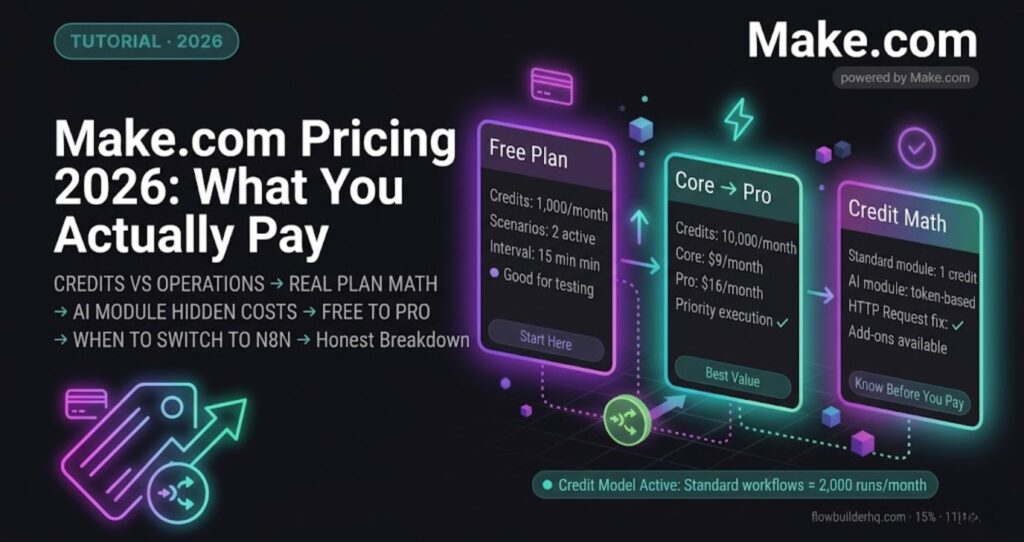
- Free: $0/month — 1,000 credits, 2 active scenarios
- Core: $9/month — 10,000 credits, unlimited scenarios
- Pro: $16/month — 10,000 credits, priority execution
- Teams: $29/month — team roles, shared templates
- Enterprise: Custom
Make switched from “operations” to “credits” in August 2025. For standard automations, 1 credit = 1 operation (same cost). For AI features, credit consumption varies by token usage. The full breakdown, real credit math, and which plan fits your use case is below.
Make.com pricing in 2026 is more complicated than the pricing page suggests. Make.com costs $9/month on the Core plan, $16/month on Pro, and $29/month on Teams — but the credit system introduced in August 2025 changed what those numbers actually mean.
In August 2025, Make overhauled its pricing model — switching from “operations” to “credits.” The change looked cosmetic. It wasn’t. Credits behave differently from operations, they cost differently depending on what you’re running, and most users who migrated didn’t notice until their monthly bill came in higher than expected.
This post breaks down exactly what you’re paying for, what the credit math looks like in practice, and whether Make.com is still worth it in 2026 — or whether you should be looking elsewhere.
Bottom line up front: Make.com is still the best visual automation tool for solopreneurs. But the credit model rewards people who understand it and quietly penalizes people who don’t. Read this before you upgrade.
What Make.com Actually Does (Two Sentences)
Make.com is a no-code workflow automation platform. You connect apps visually, set triggers and actions, and it runs your workflows automatically — no developer needed.
If you’re already running automations with Make, skip to the pricing section.
The August 2025 Credit Switch: What Actually Changed
Before August 2025, Make billed in operations — each module that executed in a scenario counted as one operation. Simple, predictable.
Now it bills in credits. For standard automations the math is identical — one module execution costs one credit. The difference shows up when you introduce AI features.
Make’s own AI modules (Make AI Agents, Make AI Toolkit) consume credits based on token usage and processing — significantly more than one credit per call. The exact amount varies by the AI task and token volume, not a fixed multiplier.
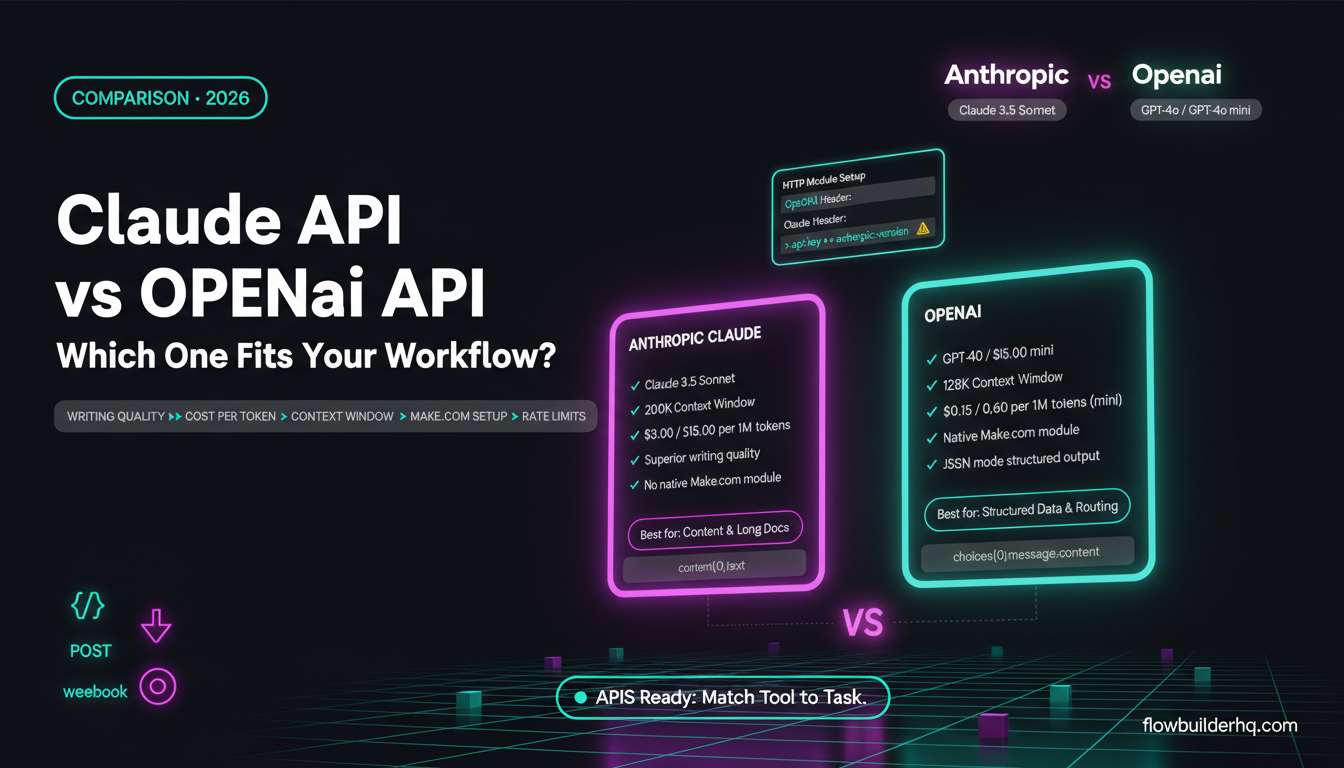
One important update that most 2025 coverage missed: as of November 6, 2025, all paid plan users can connect directly to their own AI provider — OpenAI, Anthropic, or any other — using their own API key. When you use your own API key via an HTTP Request module, it bills at standard credit rates (one credit per module execution) and you pay your AI provider directly for token usage. This is the more cost-efficient approach for AI-heavy workflows.
For pure data-routing scenarios — form submission → CRM update → email notification — the credit switch is revenue-neutral. You’re paying the same as before.
Make.com Pricing 2026: All Plans Compared
Pulled directly from make.com/en/pricing. These are annual billing prices for 10,000 credits per month:
| Plan | Monthly price (annual) | Credits/month | Key additions |
|---|---|---|---|
| Free | $0 | 1,000 | 2 active scenarios, 15-min minimum interval |
| Core | $9 | 10,000 | Unlimited active scenarios, 1-min scheduling, Make API |
| Pro | $16 | 10,000 | Priority execution, custom variables, full-text log search |
| Teams | $29 | 10,000 | Team roles, shared scenario templates |
| Enterprise | Custom | Custom | SSO, audit logs, SLAs, 24/7 support |

Monthly billing adds approximately 15% or more versus annual.
The Core → Pro jump worth examining: Same 10,000 credits, $7/month more. What you’re buying is priority scenario execution, custom variables, and full-text execution log search. For solopreneurs running client-facing or revenue-generating workflows, priority execution alone justifies the upgrade — Core plan scenarios can queue during peak hours, which creates visible delays on time-sensitive workflows.
What 10,000 Credits Actually Gets You
Scenario A — Standard data routing (no AI)
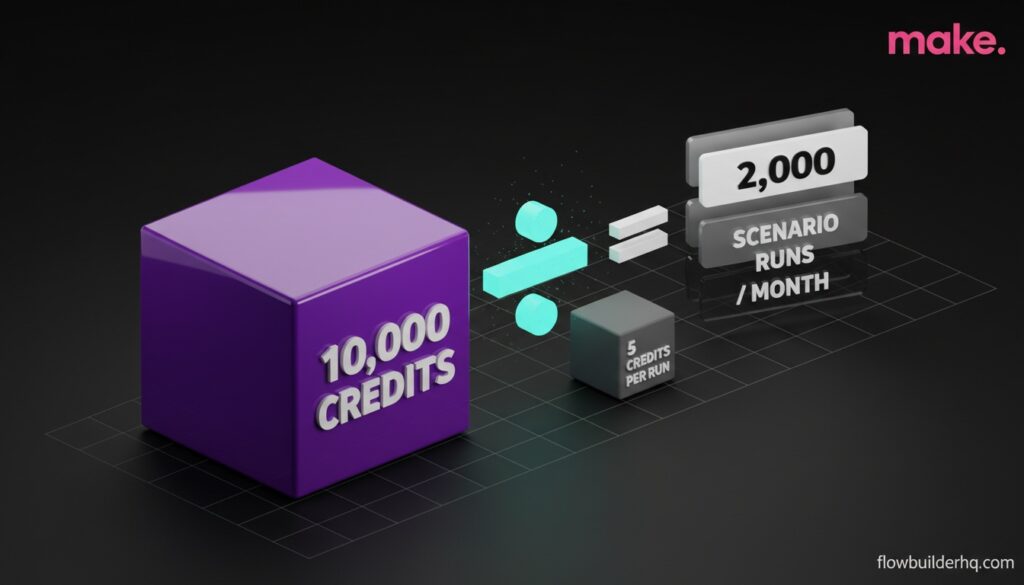
A typical scenario: webhook trigger → filter → update CRM row → send confirmation email. That’s four to six modules per execution. At one credit each, you spend four to six credits per run.
10,000 credits ÷ 5 credits average = ~2,000 scenario runs per month
For a solopreneur running client onboarding, invoice workflows, and notification scenarios, 2,000 runs a month is comfortably sufficient.
Scenario B — AI-heavy workflows using Make’s built-in AI modules
If you’re using Make’s native AI modules (Make AI Agents, Make AI Toolkit), credit consumption scales with token usage — not a fixed rate. A scenario that processes long documents or generates detailed outputs will consume significantly more credits than one handling short classification tasks.
The practical fix: use an HTTP Request module to call OpenAI or Anthropic directly with your own API key instead of Make’s native AI modules. This bills at one credit per call regardless of token volume, and you pay your AI provider separately at their standard rates. I rebuilt one content processing workflow this way and cut Make credit consumption significantly on that scenario.
How to Check Your Actual Credit Burn Rate
Before upgrading or downgrading, check your real usage:
- Open Make → your organization → Usage
- Filter by the last 30 days
- Sort scenarios by credit consumption — not run count
The sort-by-credit-consumption step is the one most people skip. A scenario that runs 50 times but costs 800 credits is a bigger budget problem than one running 500 times at 1,000 credits total. The per-run credit cost matters more than execution count.
If you’re on Free or Core and approaching your limit regularly, the issue is almost always one or two high-credit scenarios — not your overall volume.
Add-on Credits: When and Whether to Buy Them
Make sells additional credits as monthly add-ons at a 25% premium over your base plan rate. This applies whether you purchase manually or through auto-purchasing — Make standardized this in the November 2025 update (previously, manual purchases had no additional cost).
The decision logic is straightforward: if you’re consistently hitting your credit limit but don’t need the features that come with the next plan tier, add-ons are the right call. If you need priority execution or team features, upgrade the plan instead — higher tiers have lower per-credit costs built in.
Three Real Cons of Make.com’s Pricing in 2026
1. Credit consumption for AI features is hard to predict until you’ve run the scenario.
Make’s pricing page explains that AI modules use credits based on token usage. It doesn’t give you a formula for estimating costs before you build. You find out by running and checking — not ideal for budgeting.
2. Annual billing locks you in with no exit ramp.
The 15%+ savings on annual billing is real. But if your business needs change mid-year — you pivot, scale down, or move to n8n — you’ve pre-paid for capacity you’re not using. There’s no prorated refund.
3. Execution priority throttling on Core is real.
On the Core plan, high-volume scenario runs can queue during peak hours. For most solopreneur use cases this doesn’t matter. But anything customer-facing with a response-time expectation — intake forms, payment confirmations, real-time notifications — warrants the Pro upgrade.
Make.com vs. The Alternative Worth Knowing About
If your workflows are primarily internal and you’re comfortable with a steeper setup curve, n8n self-hosted eliminates the per-credit cost entirely. You pay for hosting — typically $5–20/month on a VPS — and run unlimited operations.
The tradeoff is real: n8n requires more configuration time upfront, and debugging is less visual than Make’s canvas. I run both — n8n for internal pipeline work where execution volume is high, Make for client-facing workflows where the visual canvas makes it easier to audit and adjust quickly.
If you want the managed version without self-hosting, n8n Cloud starts at $8/month →
Covered in more detail in the n8n vs Make.com comparison →
Who Should Pay for Make.com in 2026
Pay for Pro if:
- You’re running five or more active scenarios
- Any workflows are client-facing or revenue-generating
- You need full execution logs for debugging without SSH-ing into a server
Stay on Free if:
- You’re testing workflows or building your first automations
- You have fewer than two active scenarios
- Your run volume is under 200 per month
Consider n8n instead if:
- You’ve already built multi-step workflows and want unlimited execution without per-credit billing
- You’re comfortable managing a cloud instance
- Your primary use case is internal automation, not client-facing workflows
Automations Worth Building on Make.com Right Now
Before deciding on a plan, it helps to know what you’d actually build. Three workflows with strong ROI for solopreneurs:
Automated client invoicing — Stripe triggers a scenario on payment, generates a receipt, logs it to Google Sheets, and sends a personalized confirmation email. Saves meaningful admin time every week. Full walkthrough in the Make.com invoicing automation post →
Consultant client workflow automation — new client onboarding from form submission through welcome email, Notion project page creation, and Stripe invoice, all in one scenario. Covered step-by-step in Make.com for Freelancers →
Content publishing pipeline — draft approval triggers publishing to WordPress, social scheduling, and a Slack notification. The kind of workflow that makes Pro worth it — it runs dozens of times per month and touches external apps at every step.
Final Verdict
Make.com’s credit model is not simpler than operations — it’s just different. The predictability of the old model (every module = one unit, always) is gone. What you get instead is a pricing structure that rewards solopreneurs who run standard automation-heavy workflows and requires more attention for AI-heavy scenarios.
For the right user, Make.com Pro at $16/month is an excellent deal. You’re getting a visual automation canvas that rivals tools costing three to four times as much, solid app coverage, and enough credits to run a real solopreneur operation.
The move I’d recommend: start on Free, build your first two or three scenarios, and check your credit usage after two weeks. Your actual burn rate will tell you which plan you need — and whether any AI-heavy scenarios should be refactored before you upgrade.
Try Make.com Pro free for 30 days →
What’s next?
Pricing is only half the picture — if you’re trying to figure out whether Make.com is the right tool for your stack at all, see our full Make.com review for the honest verdict. And if you’re choosing between Make.com and its main alternatives, our n8n vs Make.com comparison and Make.com vs Zapier breakdown cover the trade-offs at every solopreneur volume.
How much does Make.com cost in 2026?
Make.com offers four paid tiers: Free ($0), Core ($9/month), Pro ($16/month), and Teams ($29/month). All paid plans include 10,000 credits per month on annual billing. Enterprise pricing is custom.
What’s the difference between operations and credits on Make.com?
Before August 2025, Make billed by operations (one module execution = one operation). The 2025 switch renamed these to credits. For standard automations, the math is identical. For AI features using Make’s native modules, credit consumption scales with token usage rather than a fixed rate per call.
Is the Make.com free plan enough for solopreneurs?
The free plan includes 1,000 credits per month and 2 active scenarios with a 15-minute minimum interval. It’s enough for testing and building your first automations, but most solopreneurs running real workflows will need to upgrade to Core ($9/month) within a month or two of regular use.
How many credits do I need on Make.com?
A typical solopreneur workflow consumes 4-6 credits per run. 10,000 credits per month (Core, Pro, and Teams tiers) supports approximately 2,000 scenario runs per month — sufficient for most one-person operations.
Is Make.com cheaper than Zapier in 2026?
Yes, significantly. Make.com’s Core plan at $9/month includes 10,000 credits. Zapier’s equivalent Starter plan is $19.99/month for 750 tasks. For per-operation cost, Make is roughly 80% cheaper at most volumes.
Can I cancel Make.com annual billing mid-year?
No. Annual billing is locked in for the full year with no prorated refunds. If you’re uncertain about long-term commitment, monthly billing is safer despite the ~15% premium.
Building this yourself? Get the workflow pack.
5 ready-to-import n8n workflows — lead capture, invoicing, content repurposing, onboarding, social posting. Free.