How to Automate Repetitive Tasks as a Solopreneur (Without Coding): 7 Real Workflows That Save Hours
If you’re running a one-person business, you already know the feeling: you’ve done the same task for the fifteenth time this month, and it hits you that a script or a tool could have handled every single one of those. That’s exactly where automation earns its place. This post covers how to automate repetitive tasks as a solopreneur — without writing a single line of code — using real workflow examples you can copy today.
No theory. No 40-step setup marathons. Just the tasks that actually drain your time and how to make them run without you.
Why Task-First Automation Works Better Than Tool-First
Most solopreneurs approach automation backwards. They sign up for a tool, poke around the interface, and then try to figure out what to do with it. That’s how you end up with five connected apps and zero actual time saved.
The better approach: start with the task you hate most. Identify the trigger (something happens), the action (something needs to be done as a result), and the output (where the result lands). Once you can describe a workflow in one sentence, building it takes under 30 minutes on a visual tool like Make.com.
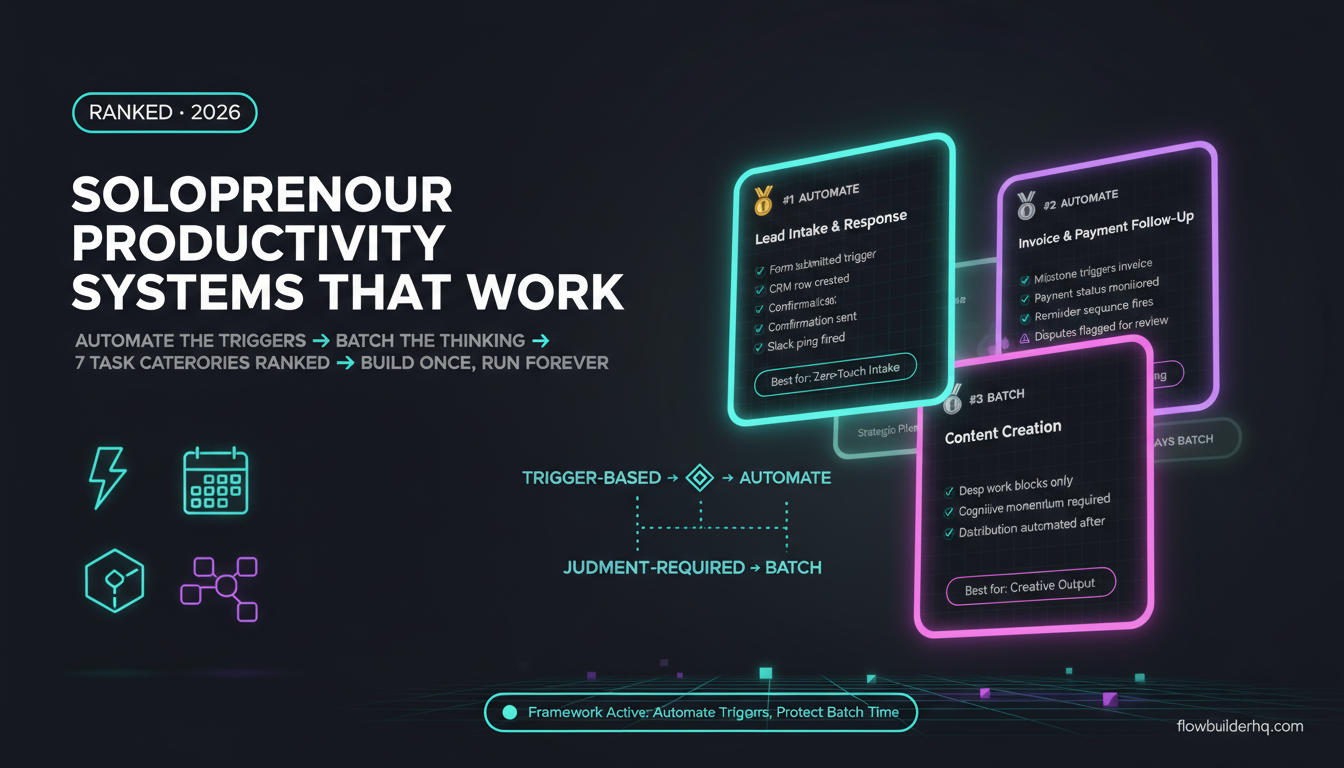
For a broader framework on where to start, this prioritization guide breaks down which workflows have the highest ROI for solo operators before you touch any tool.
How to Automate Repetitive Tasks as a Solopreneur: 7 Real Workflows
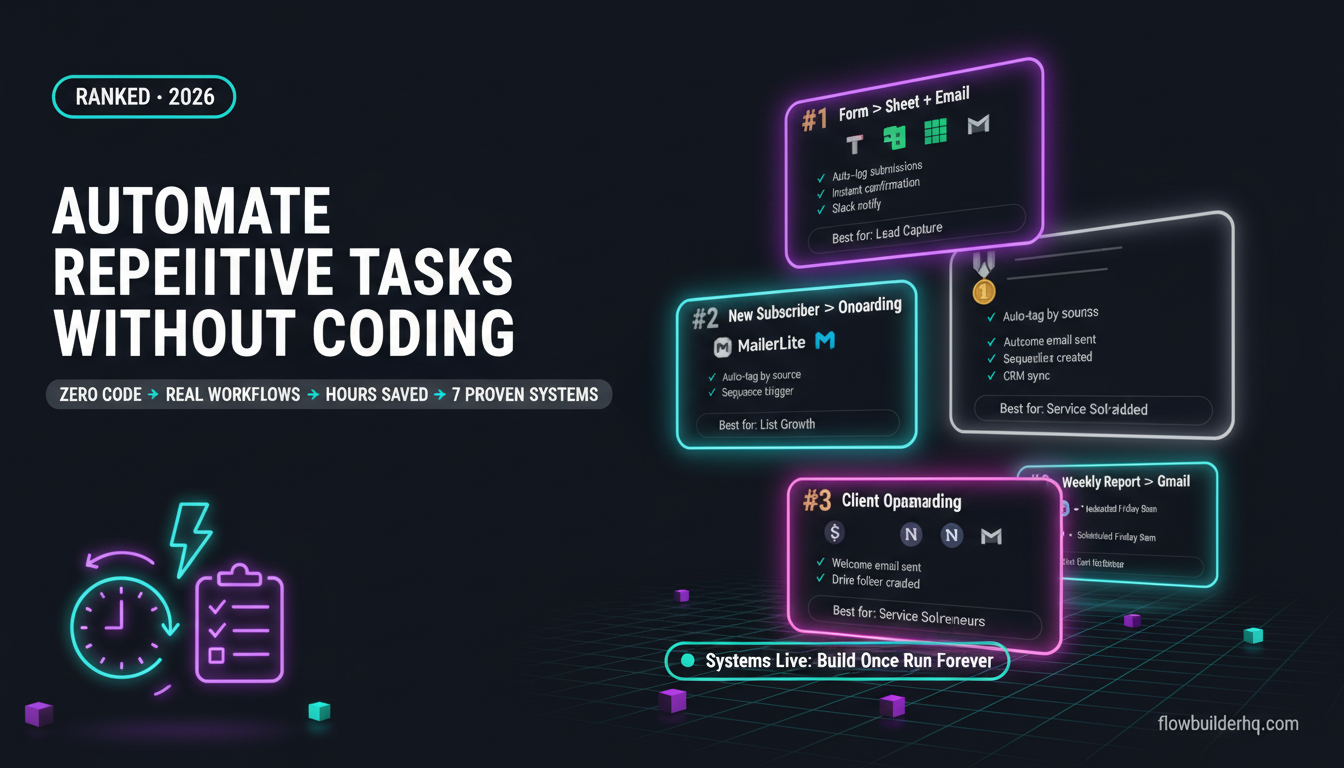
1. Form Submissions → Spreadsheet + Email Notification
Every time someone fills out your intake form, contact form, or lead magnet form, you’re probably doing one of three things: manually copying it to a spreadsheet, re-sending a confirmation email by hand, or just losing the submission in your inbox.
The workflow: Form submission triggers → data appended to Google Sheets row → automated confirmation email sent to the submitter → optional Slack or email notification to you.
This is one of the first automations most solopreneurs build, and it’s genuinely one of the most valuable. If you use Typeform, the Typeform + Make.com intake workflow walks through the exact build with real field mappings. If you use Google Sheets as your data layer, the Make.com + Google Sheets automation guide is the companion piece.
Time to build: 20–30 minutes. Zero code required.
2. New Subscriber → Tagging + Onboarding Sequence Trigger
Someone opts into your list. Do they get tagged correctly? Does the right onboarding sequence start? If you’re doing this manually, you’ll miss people — and you’ll waste time on the ones you catch.
The workflow: New subscriber added to email list → automation applies tag based on opt-in source → triggers onboarding sequence in your email platform → optionally adds contact to CRM.
Tools like MailerLite (free up to 500 subscribers, Growing plan $10–15/mo) have basic automation built in. But if your subscriber source lives outside your email tool — say, a Gumroad purchase, a Calendly booking, or a Notion form — you need a connector. Make.com handles cross-platform tagging without any code. Albato is a solid alternative if you want something more minimal; their Pro plan runs $25/mo and covers the most common app combinations.
For a comparison of email platforms before you wire this up, this breakdown of MailerLite vs ActiveCampaign vs HubSpot covers which one fits a small list best.
3. Weekly Report Generation
If you send weekly reports to clients — project updates, ad performance, content metrics — and you’re compiling them by hand every Friday, that’s 2–4 hours a week you’re never getting back.
The workflow: Scheduled trigger (every Friday at 9am) → pulls data from Google Sheets or Airtable → generates a formatted report using a template → sends via Gmail or your email platform → optionally logs the send in a CRM.
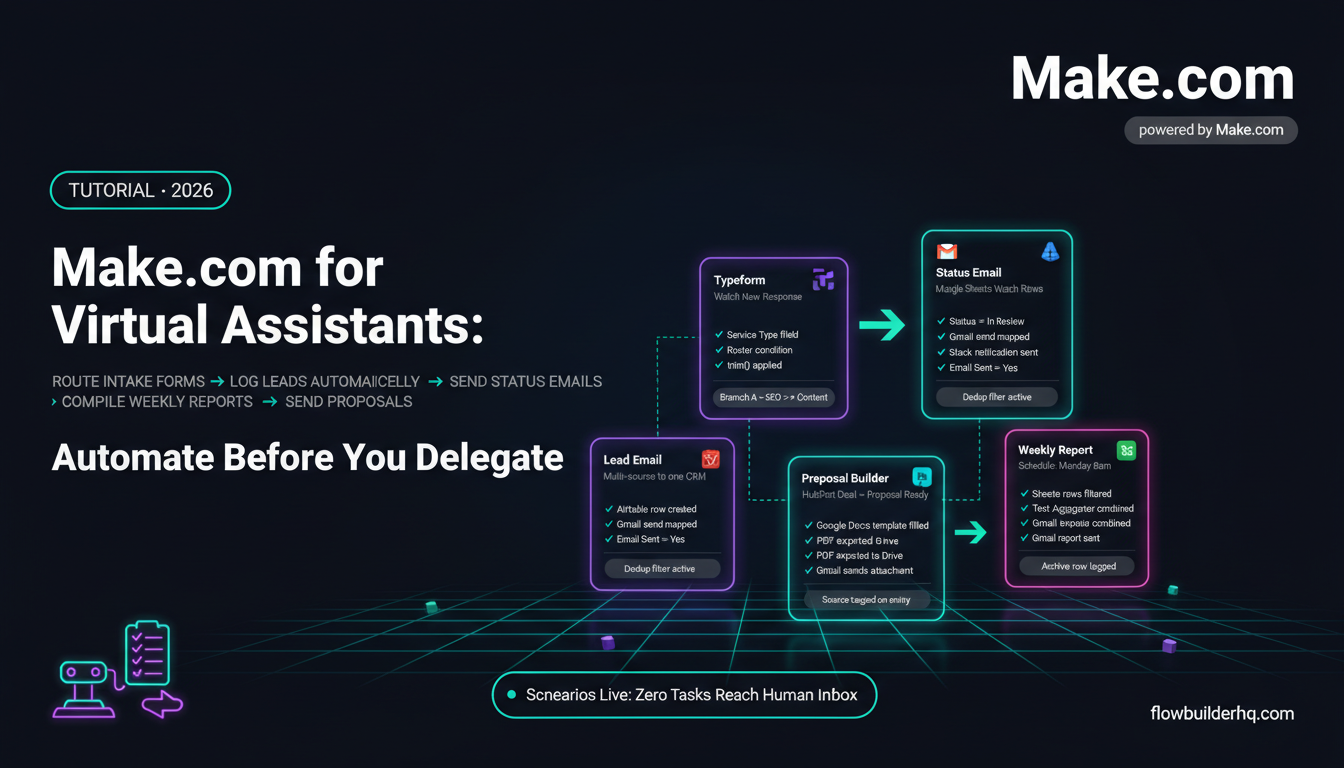
This is the kind of workflow that looks complicated but builds in under an hour once you have clean data sources. The client reporting automation walkthrough covers the exact build including how to handle formatting inside Make.com scenarios.
Time to build: 45–60 minutes for a complete scheduled report workflow.
4. Content Scheduling Across Platforms
Writing content once and publishing it everywhere manually is exactly the kind of work that should disappear from your to-do list. The friction isn’t in the writing — it’s in the copy-paste-resize-post loop across LinkedIn, Twitter/X, Instagram, and your blog.
The workflow: New row added to a Google Sheet content calendar → automation reads the post text, image link, and scheduled time → publishes to connected social accounts at the right time.
Make.com’s social media integrations cover most major platforms natively. The social media posting automation guide walks through a real content calendar setup. If you also want to automate turning long-form content into social snippets, the content repurposing workflow is the natural next step.
5. Client Onboarding After a Booking or Purchase
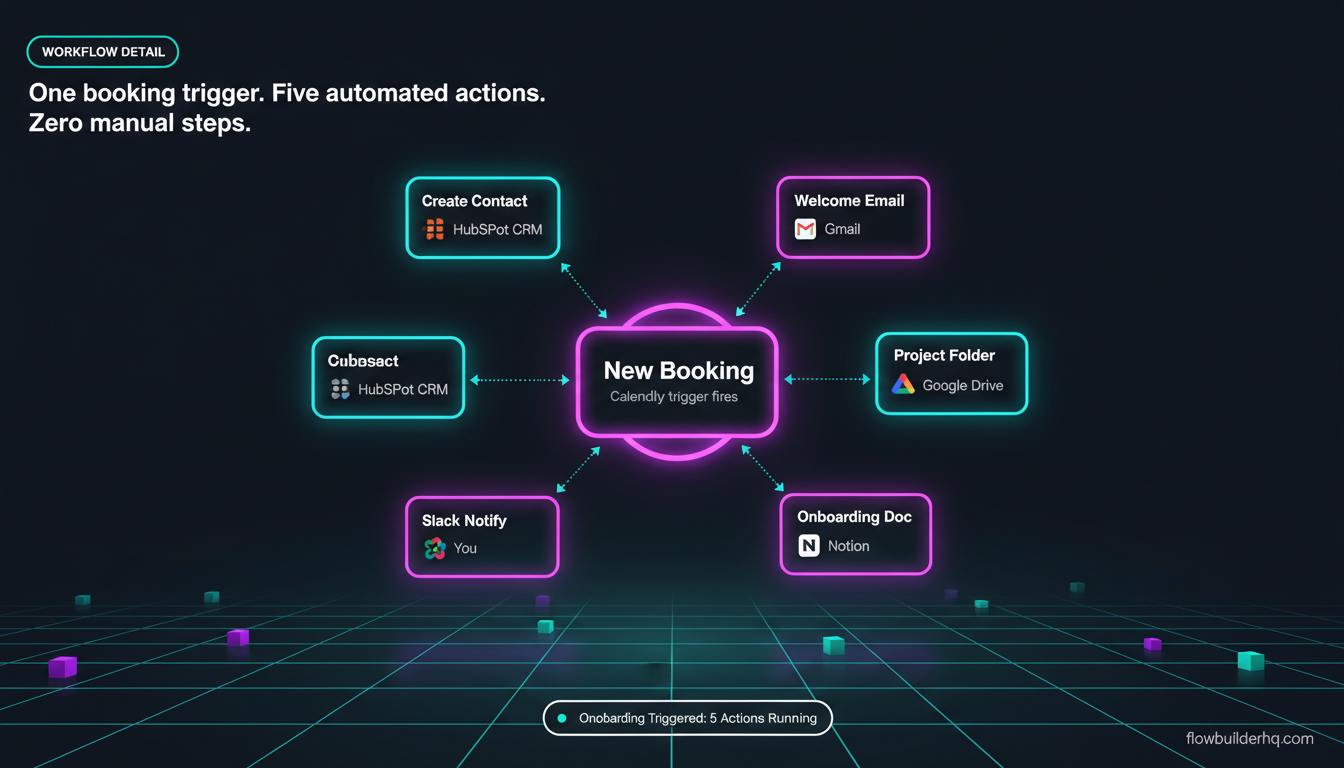
The moment someone pays you or books a call, a chain of tasks kicks off: send a welcome email, share your onboarding doc, create a project folder, add them to your CRM. If you’re doing any of that manually, you’ve already dropped the ball on a few.
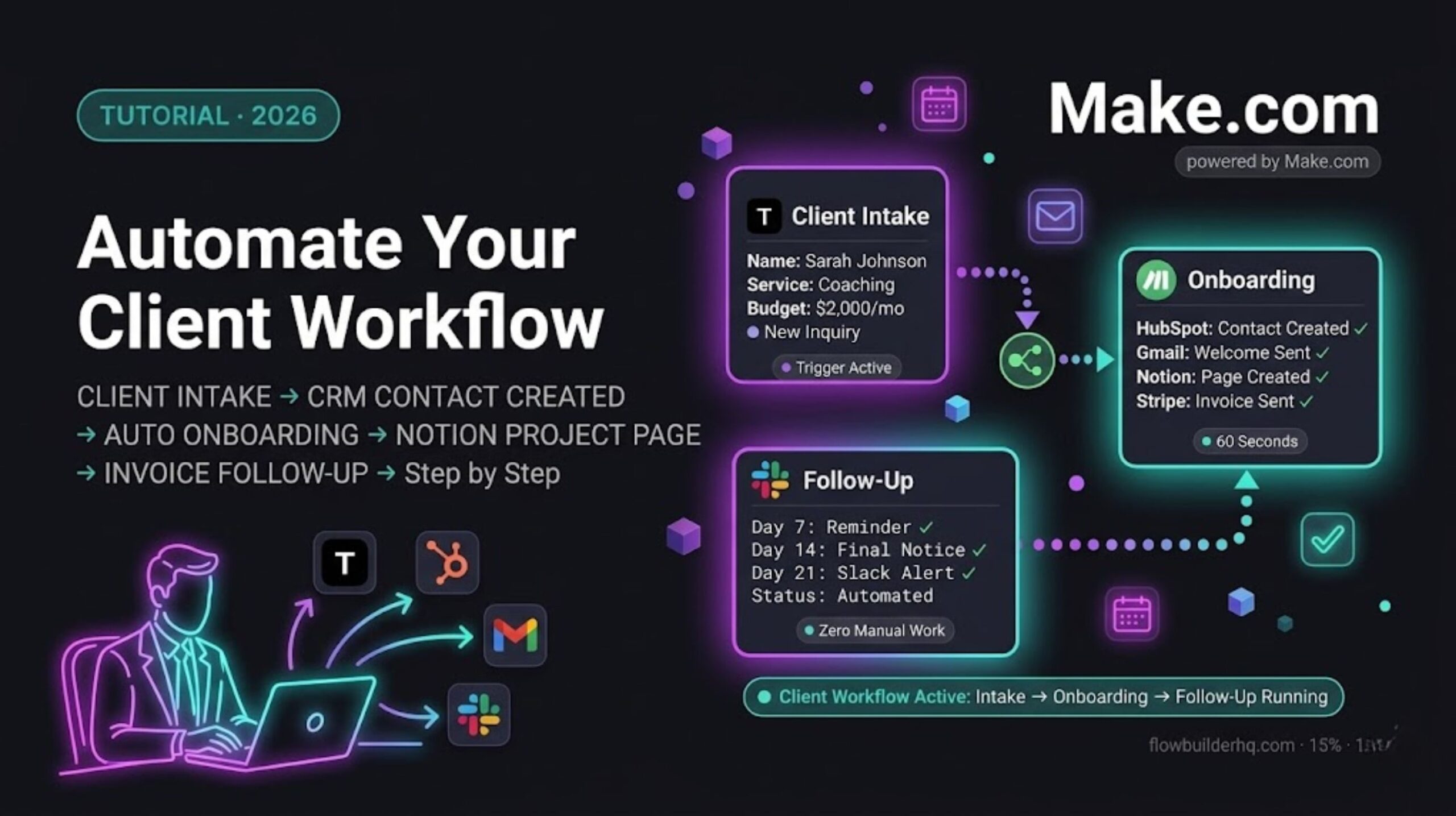
The workflow: New payment or booking trigger → creates contact in CRM → sends welcome email with onboarding doc → creates project folder in Google Drive or Notion → notifies you via email or Slack.
This is one of the highest-ROI automations for service-based solopreneurs. The Make.com client onboarding workflow covers the full build. For coaches and consultants specifically, this automation guide for coaches shows how to wire Calendly, Gmail, and Notion together in one scenario.
If you prefer a lighter-weight approach, Albato supports Calendly, Stripe, and most CRMs with a simpler drag-and-connect interface. It won’t handle complex multi-branch logic as well as Make.com, but for a simple onboarding trigger it gets the job done.
6. Lead Capture → CRM Entry + Follow-Up Reminder
A lead comes in from a contact form, a landing page, or a direct message. If that lead doesn’t land somewhere structured within 60 seconds, you’re relying on memory — which means you’re losing deals.
The workflow: Form submission or webhook → creates or updates contact in HubSpot Free CRM → adds a follow-up task with a due date → optionally sends an automated first response to the lead.
HubSpot’s free CRM handles contact storage well. The lead tracking in HubSpot Free guide covers the CRM setup side. To wire the automation trigger into it, connecting Make.com to HubSpot shows the integration end-to-end.
According to Google’s Workspace automation documentation, connecting form tools to structured databases is one of the most common entry-point automations for small teams — and for good reason. It replaces a brittle manual habit with a consistent system.
7. Invoice Sending After Project Milestones
Chasing invoices is bad enough. Forgetting to send them is worse. If your billing is tied to project milestones or recurring dates, automating the send removes the entire task from your brain.
The workflow: Date-based trigger or project status change → pulls client details and invoice amount from a spreadsheet or CRM → generates invoice PDF → sends via email → logs the send.
Make.com’s Stripe and PayPal integrations handle this cleanly. The invoicing automation with Make.com post covers both payment platforms with real workflow screenshots.
For Stripe specifically, the Make.com’s integration documentation outlines what webhooks are available — useful when you want to trigger actions on payment events rather than on a schedule. Make.com’s webhook module picks these up natively, no code involved. For a beginner-level intro to using webhooks in Make.com, this webhooks tutorial is the fastest path forward.
Which Tool Should You Start With?
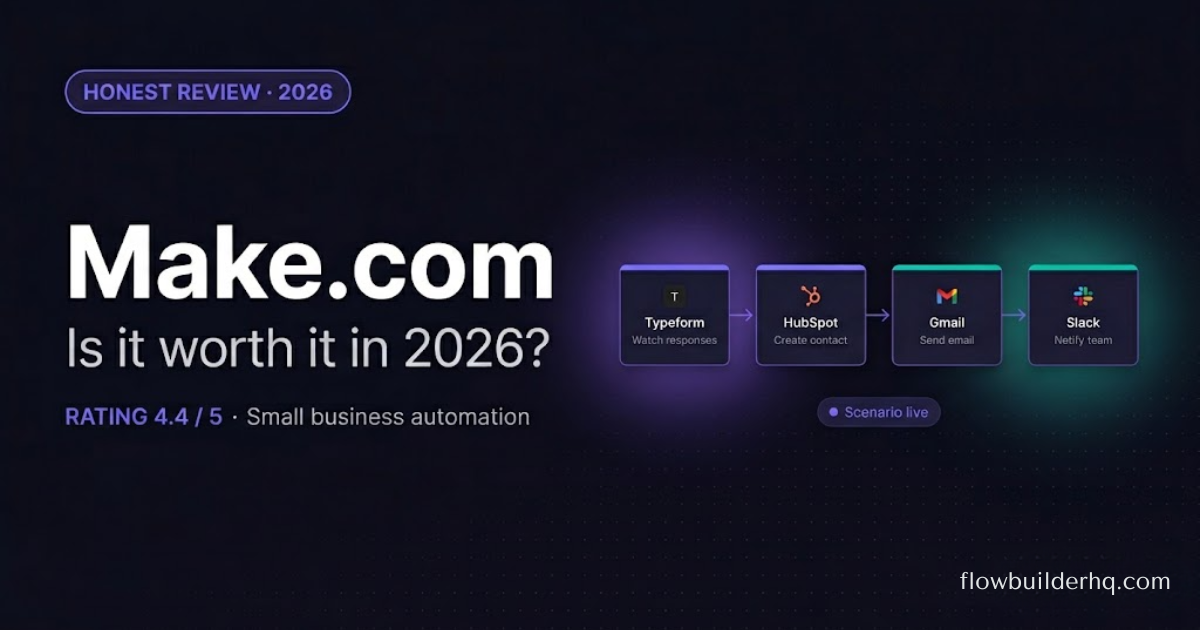
For most solopreneurs discovering automation for the first time, Make.com is the right starting point. The visual scenario builder shows you exactly what’s happening at each step — which makes debugging obvious and building faster. The free plan gives you 1,000 operations per month, which covers most light automation setups. Paid plans start at $9/mo (Core) and $16/mo (Pro).
For a full breakdown of what Make.com actually costs at scale, the Make.com pricing breakdown is worth reading before you commit to a plan. And if you want to compare it against Zapier on real pricing math, the Make.com vs Zapier comparison is honest about where each one wins.
If Make.com’s interface feels like too much upfront, Albato is worth a look. It’s more limited on complex logic, but the connection setup is faster for users who just want to link two apps and be done. Pro plan is $25/mo. Business is $59/mo. There’s a free trial to test your core workflows before paying anything.
For a broader view of what’s available, the ranked list of no-code automation tools for 2026 covers the full landscape including tools built for specific use cases.
What Makes These Workflows Actually Stick
The automations that stay running are the ones built around things that happen on a predictable schedule or a consistent trigger. One-off tasks don’t automate well. But if something happens more than twice a week in your business, it’s a candidate.
Start with one workflow. Pick the task you do most often. Build it in Make.com using their pre-built templates — the Make.com scenario templates for small business are a fast starting point that won’t require you to build from zero. Then add a second workflow once the first one has run reliably for a week.
The official Make.com app directory lists every integration available on the platform — useful for confirming your specific tools are supported before you start building.
Most solopreneurs who commit to one afternoon of automation setup eliminate 5–10 hours of recurring manual work per month. That’s not an estimate to take on faith — count up how many times you did any of the seven tasks above last month, and multiply by average minutes. The math usually surprises people.
Building this yourself? Get the workflow pack.
5 ready-to-import n8n workflows — lead capture, invoicing, content repurposing, onboarding, social posting. Free.