Make.com for Bookkeepers and Accountants: Automate Client Workflows in 3 Steps
Bookkeepers and accountants lose more billable hours to client chasing than to any actual accounting work. Reminder emails that go unseen. Document requests that get half-answered. Month-end checklists sent manually to a dozen clients. If you run a solo or small bookkeeping practice, Make.com for bookkeepers and accountants is the tool that actually fits how this work moves — not because it markets itself that way, but because its visual workflow builder handles conditional logic, scheduled triggers, and multi-step data routing in exactly the way accounting client workflows demand.
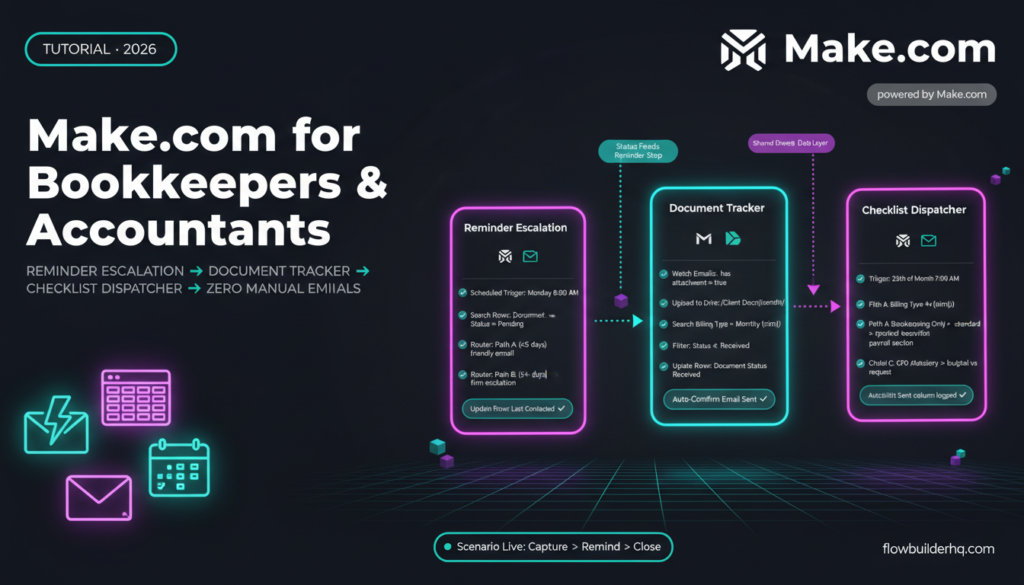
This tutorial builds three real, complete scenarios you can run today: automated reminder emails that escalate when ignored, a document collection workflow that tracks what’s been received, and a monthly close checklist dispatcher that adjusts by client. No placeholders. No “you could also try” suggestions. Just the builds.
If you’re new to Make.com scenarios, the beginner scenario build guide covers the fundamentals before you start here.
Why Make.com Fits Bookkeeping Workflows Better Than Generic Alternatives
Zapier handles simple linear triggers well. But bookkeeping client workflows are rarely linear. You need: “Send a reminder on Monday. If the client responds and attaches a file, log it and stop the sequence. If they don’t respond by Wednesday, send a different email with a firmer tone. If it’s a payroll client, also notify the payroll coordinator.” That’s conditional branching, file detection, and role-based routing — all in one sequence.
Make.com handles this with Routers and Filters natively, without requiring separate Paths apps or premium plan upgrades. The multi-step workflow with filters and routers guide goes deep on this if you want the mechanics first.
For bookkeepers specifically, the Google Sheets, Gmail, Slack, and Notion integrations are the core stack. You likely already use at least two of these. Make connects them without a middleware workaround.
What You’ll Need Before Starting
- A Make.com account (free tier covers all three workflows at low client volume)
- A Google Sheets client roster with at minimum: Client Name, Email, Billing Type (monthly/quarterly), Document Status, Last Contacted date
- Gmail connected as a Make module (OAuth takes about 90 seconds)
- Optional: Slack workspace for internal notifications, Notion for checklist storage
Your Google Sheet is doing the work of a lightweight CRM here. If you’re already using a proper CRM for client tracking, the client management without a CRM post explains how to keep Sheets lean enough to work as a data layer without it becoming a mess.
Workflow 1: Automated Client Reminder Emails With Escalation Logic
This is the highest-ROI workflow for most bookkeepers. You send the same “Hey, I still need your bank statements” email multiple times a month, manually. This scenario handles it on a schedule and escalates automatically.
The Trigger
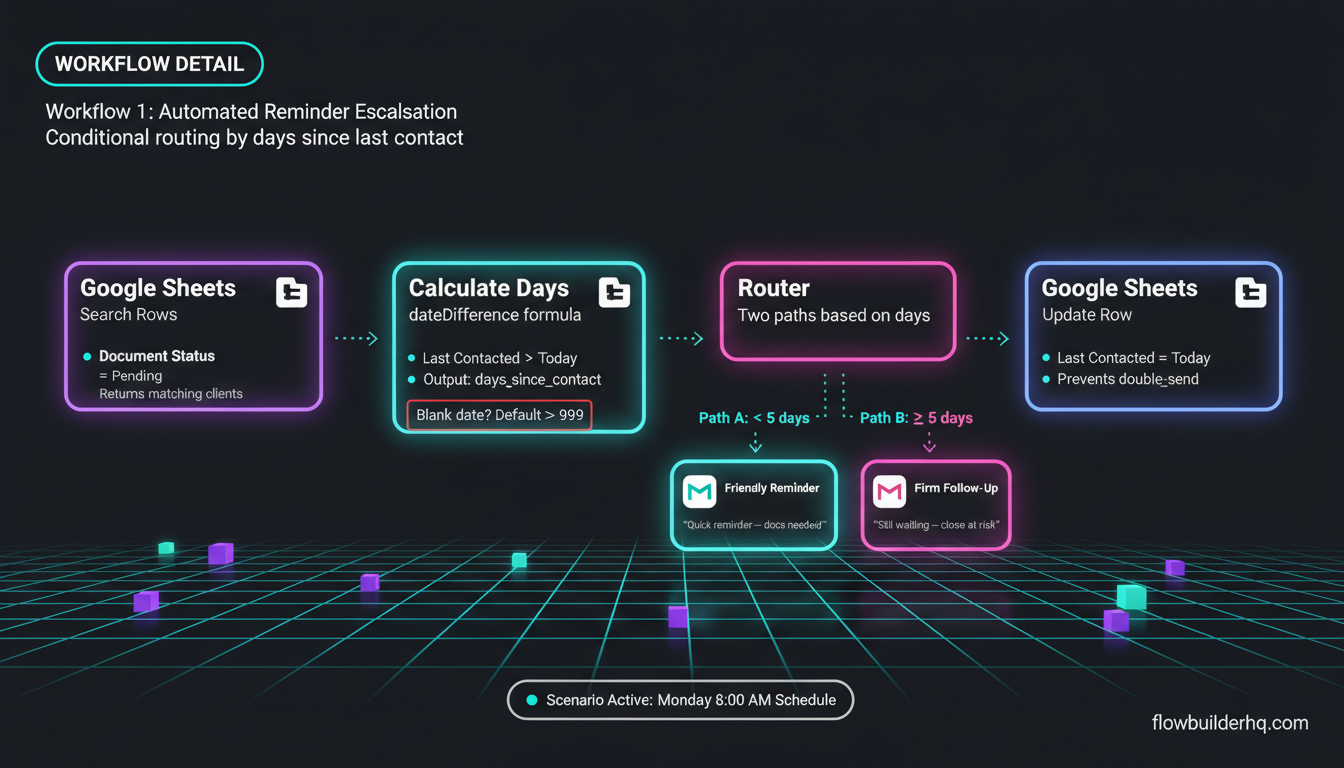
Use a Scheduled trigger — set it to run every Monday at 8:00 AM. This polls your Google Sheets client roster.
Step-by-Step Build
- Module 1 — Google Sheets: Search Rows. Set it to search your roster where
Document Status=Pending. This returns only clients who haven’t yet delivered what you need. - Module 2 — Google Sheets: Get Cell / Calculate Days. Use a
dateDifferenceformula comparingLast Contactedto today. Output this as a variable calleddays_since_contact. - Module 3 — Router. Create two paths:
- Path A: Filter:
days_since_contactis less than 5. Action: Send a friendly first-touch Gmail (subject: “Quick reminder — docs needed for [Month] close”). - Path B: Filter:
days_since_contactis 5 or more. Action: Send a firmer second-touch Gmail (subject: “Still waiting on your documents — [Month] close at risk”).
- Path A: Filter:
- Module 4 — Google Sheets: Update Row. After each email sends, write today’s date back into
Last Contacted. This prevents double-sending on the next run.
The Error You’ll Hit (and the Fix)
Problem: On the first run, Last Contacted is blank for new clients. The dateDifference calculation returns an error and the scenario stops.
Fix: Add an Error Handler on Module 2 with a Resume directive. Set it to output a default value of 999 when the date field is empty — this forces the scenario to treat blank contacts as long-overdue and route them to Path B. Go to Make.com error handling for the full pattern on Resume directives if this is your first time using them.
What This Saves
For a practice with 15 monthly clients, this replaces 60+ manual emails per month. The escalation logic alone means you stop sending the same gentle nudge six times before switching to a firmer tone.
Workflow 2: Document Collection Tracker With Automatic Status Updates
The reminder emails above assume you’re tracking document status in Sheets manually. This scenario automates the status update when a client actually sends something.
The trigger here is email-based. When a client replies to your document request email with an attachment, Make detects it and updates the row automatically.
Step-by-Step Build
- Module 1 — Gmail: Watch Emails. Filter by: has attachment = true AND subject contains “RE:” AND from is in a list of known client emails. Use a label like
docs-receivedto scope the watch — this keeps Make from scanning your entire inbox. - Module 2 — Google Drive: Upload File. Route the attachment directly to a client-specific Google Drive folder. Use dynamic folder naming with the client email variable:
/Client Documents/{{sender_email}}/{{month}}/. - Module 3 — Google Sheets: Search Rows. Find the row in your roster where
Emailmatches the sender. - Module 4 — Google Sheets: Update Row. Set
Document Status=Receivedand write today’s date toDocuments Received Date. - Module 5 — Gmail: Send Email. Fire an automatic confirmation back to the client: “Got your documents — I’ll have your books ready by [X date].” This one email alone eliminates a category of back-and-forth.
The Error You’ll Hit (and the Fix)
Problem: A client sends two emails with attachments in the same week (part 1 and part 2 of their statements). The second run finds Document Status already set to Received and still triggers a second confirmation email.
Fix: Add a Filter between Module 3 and Module 4: only continue if Document Status ≠ Received. This makes the update and confirmation idempotent — runs once per client per period, regardless of how many emails arrive.
For building out the Google Sheets data layer in more detail, the Make.com with Airtable guide shows a similar roster-as-database approach that works for more complex client setups.
Workflow 3: Monthly Close Checklist Dispatcher
Every month, the same checklist goes out to every client. Except it doesn’t — because payroll clients need payroll items, cash-basis clients don’t need accrual reconciliation notes, and quarterly clients shouldn’t get a monthly checklist at all. Sending this manually means either a generic checklist that’s partially wrong or a custom one you build from scratch each time.
This scenario dispatches a personalized checklist to each active client based on their billing type and service tier.
Step-by-Step Build
- Module 1 — Scheduled Trigger. Set to run on the 25th of each month at 7:00 AM. This gives clients a few days’ lead time before month-end.
- Module 2 — Google Sheets: Search Rows. Filter:
Status=ActiveANDBilling Type=Monthly. This automatically excludes quarterly clients from the monthly run. - Module 3 — Router. Split by service tier:
- Path A: Filter:
Service Tier=Bookkeeping Only. Gmail: Send the standard checklist template. - Path B: Filter:
Service Tier=Bookkeeping + Payroll. Gmail: Send checklist template with payroll section appended. - Path C: Filter:
Service Tier=CFO Advisory. Gmail: Send checklist plus a budget-vs-actual data request paragraph.
- Path A: Filter:
- Module 4 — Google Sheets: Update Row. Log the send date in a
Checklist Sentcolumn. This becomes your audit trail — you can always verify which clients received what and when. - Optional Module 5 — Slack: Send Message. Post to your own Slack: “Monthly close checklists dispatched to [count] clients.” One-line visibility into whether the scenario ran cleanly.
The Error You’ll Hit (and the Fix)
Problem: The scenario runs on the 25th, but one client’s Billing Type column has a trailing space — “Monthly ” instead of “Monthly”. The Search Rows filter returns zero results for that client and they never receive a checklist.
Fix: Wrap the filter value in a trim() function in the Make formula field: trim({{Billing Type}}) = "Monthly". Do this on every text-match filter you build — it prevents silent data quality issues from breaking your automations. This is one of the most common workflow automation mistakes and the easiest to miss.
How These Three Workflows Connect
Run together, these three scenarios create a closed loop:
- The checklist dispatcher kicks off each month-end cycle and tells clients what to send.
- The reminder escalation runs weekly and follows up on anyone who hasn’t delivered.
- The document collection tracker monitors incoming replies, updates statuses, and stops the reminder sequence for clients who’ve delivered.
The reminder escalation scenario in Workflow 1 already reads Document Status from Sheets — so once Workflow 2 marks a client as Received, the reminder automatically stops targeting them on the next Monday run. No manual intervention.
This is also why Make.com’s visual scenario builder matters here. When you’re looking at three connected scenarios that share a data layer, being able to see the module flow and trace the data path visually makes debugging fast. If something breaks in the middle of month-end, you’re not reading logs in a command line — you see exactly which module failed and why.
For a broader picture of how to automate invoice and payment tracking alongside these workflows, the invoice and payment tracking tutorial is a direct complement to what’s built here.
Adapting These Workflows for a Multi-Staff Practice
If you have a small team — even one part-time assistant — these scenarios can route by staff assignment. Add a Assigned To column in your Sheets roster. In each Router, add a branch that checks Assigned To and CCs or notifies the right person via Gmail or Slack.
The Make.com for virtual assistants post covers this staff-routing pattern in detail for anyone delegating workflow management to a VA.
For client feedback collection at close — where you want to know if the client is satisfied before you invoice — the client feedback collection workflow adds a clean post-close touchpoint using Tally forms and Make.
Make.com Operations Cost at Bookkeeping Scale
For a practice with 20 monthly clients running all three scenarios:
- Workflow 1 (reminder emails): ~4 operations per client per week = ~320 ops/month
- Workflow 2 (document tracker): ~5 operations per email received, assuming 2 emails per client = ~200 ops/month
- Workflow 3 (checklist dispatcher): ~4 operations per client once monthly = ~80 ops/month
Total: roughly 600 operations per month. Make.com’s free plan covers 1,000 ops/month — you run all three scenarios without paying anything for a 20-client practice. Detailed pricing math for heavier use is in the Make.com vs Zapier pricing comparison.
For reference, doing this same workflow architecture in Zapier would require a Professional plan ($69/mo) to access multi-step Zaps with filtering. Make’s free tier handles it natively.
Connecting Make.com to Your Existing Stack
Most bookkeepers already use a combination of Gmail, Google Drive, and either Sheets or a tool like Notion for internal notes. Make connects to all of them without custom API work.
If you’re using Airtable instead of Google Sheets as your client database, every scenario above works the same — swap the Google Sheets modules for Airtable modules. The filter logic and router structure don’t change.
For practices considering a proper CRM layer on top of these workflows, the client portal build with HubSpot and Make shows how to use HubSpot’s free CRM as the data source instead of Sheets — which gives you deal tracking and contact history alongside the automation.
Make.com’s own integrations library lists every tool it connects to natively — worth checking if you use practice management software like Karbon or TaxDome, both of which have Make connectors.
Get Started
The three workflows above are buildable in an afternoon. Start with Workflow 1 — the reminder escalation — because it’s the one that pays back its build time fastest. Once you’ve confirmed the scheduler and Gmail modules are connected and working, Workflow 2 (document tracker) takes 20 minutes to add.
If you haven’t already set up a Make.com account, the free plan is the right starting point for a solo or small practice — 1,000 ops covers everything described here.
Start your free Make.com account and build the reminder escalation scenario today. Your next Monday morning run won’t require you to touch a single email manually.
Building this yourself? Get the workflow pack.
5 ready-to-import n8n workflows — lead capture, invoicing, content repurposing, onboarding, social posting. Free.