Make.com for Virtual Assistants: Automate Client Tasks Without Extra Headcount
If you’ve ever thought “I just need a VA to handle this,” stop and read this first. Make.com for virtual assistants — meaning using Make as a VA replacement — is one of the most underused moves in the solopreneur playbook. The platform handles the repetitive, client-facing task work that eats your hours, and it costs less per month than a single hour of VA time.
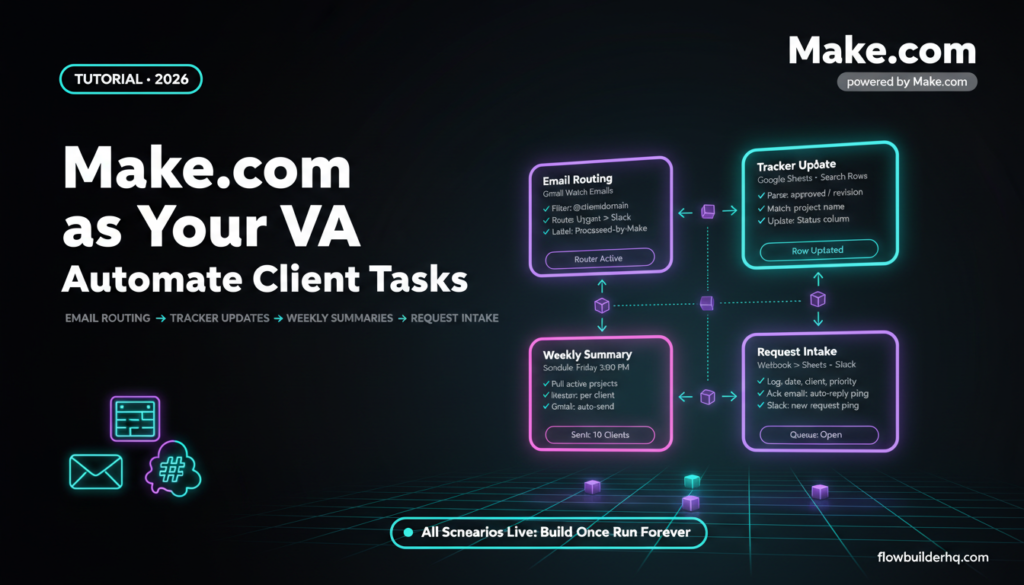
This tutorial covers four real automation workflows that replicate what a part-time VA typically does: routing client emails, updating project trackers, sending weekly status summaries, and logging client requests. These aren’t toy examples — they’re production-ready builds you can set up today.
You can also see how Make.com for virtual assistants fits into a broader no-code stack in the no-code workflow automation guide for service-based solopreneurs.
Before anything else, make sure you have a Make.com account set up. The free plan (1,000 ops/month) covers all four workflows below if your client volume is modest. If you’re running higher volume, Core at $9/month handles most one-person operations comfortably.
Why Make.com Beats Hiring for Repetitive Client Tasks
A part-time VA at $20-25/hour, 10 hours/week runs you $800-1,000/month. That’s the real comparison. Make.com Pro is $16/month. The math only works in Make’s favor if the tasks are actually automatable — and the four workflows below are. They’re rule-based, predictable, and happen on a schedule or in response to a trigger. That’s the automation sweet spot.
The caveat: Make.com won’t handle judgment calls, client calls, or anything that requires reading tone. That’s not what this is for. This is for the mechanical stuff — the work that shouldn’t require a human but currently does because you haven’t had time to wire it up.
If you’re still deciding whether Make.com is the right tool for your stack, this decision framework walks through how to evaluate it against your actual workflow before committing.
What You Need Before You Start
- A Make.com account (free or Core)
- Gmail or Outlook connected to Make (OAuth, takes 2 minutes)
- A Google Sheet for your project tracker (or Airtable — both work)
- Notion or Google Docs for your client summaries (optional but cleaner)
- Basic understanding of Make scenarios — if you’ve never built one, work through this beginner walkthrough first
Workflow 1: Automated Client Email Routing
The task: every time a client emails you, something needs to happen — log it, tag it, maybe notify you in Slack. A VA would do this manually by reading, tagging, and forwarding. Make does it in seconds.
The Build
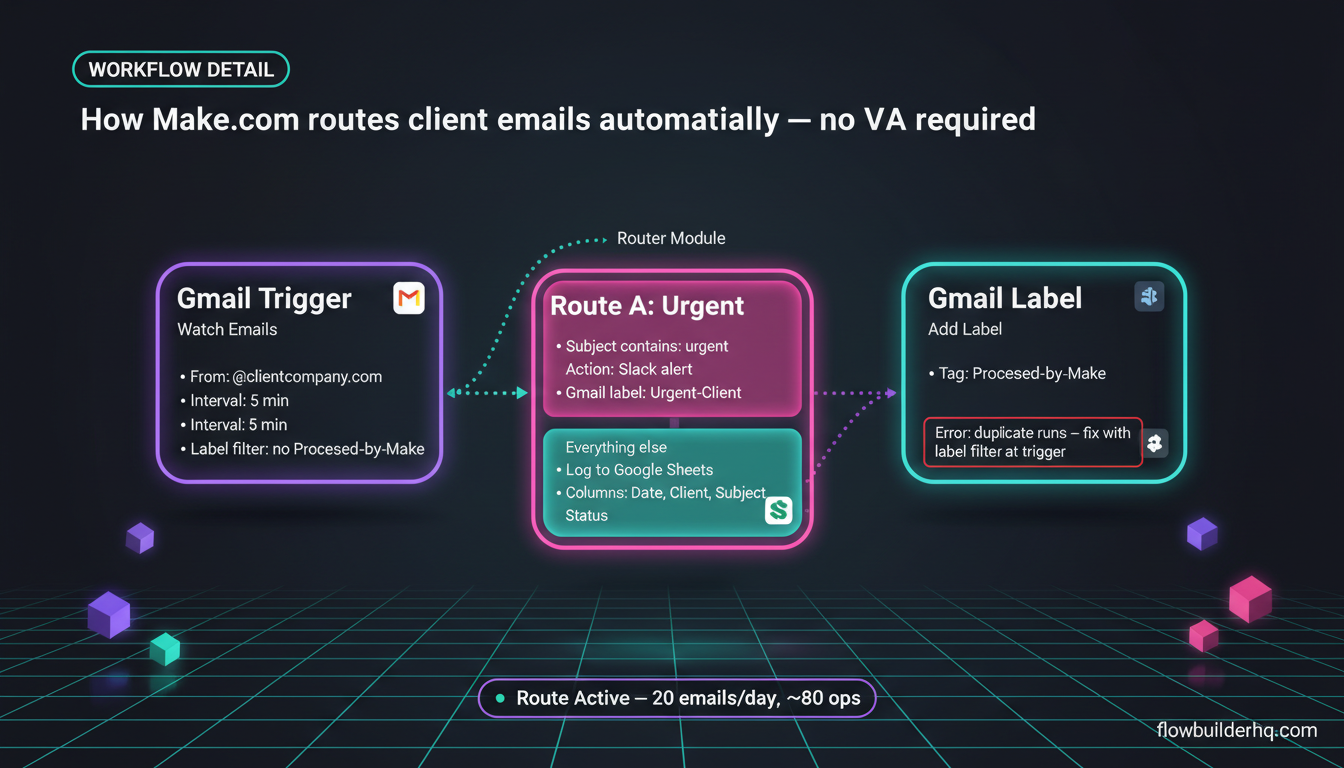
- Create a new scenario. Set the trigger to Gmail > Watch Emails. In the filter, set “From” to contain your client’s domain (e.g.,
@clientcompany.com). Set the polling interval to 5 minutes. - Add a Router module. Create two routes:
- Route A: Subject line contains “urgent” or “ASAP” → Send a Slack message to yourself with the email subject and sender. Label in Gmail as “Urgent-Client.”
- Route B: Everything else → Add a row to Google Sheets with columns: Date, Client Name, Email Subject, Status (default: “New”).
- On both routes, add a Gmail > Add Label module to tag the email “Processed-by-Make.”
Common error: Gmail’s Watch Emails trigger will re-pull emails you’ve already processed if you don’t set the “Mark as Read” flag or apply a label filter. Fix this by adding a filter at the trigger: “Label does not contain Processed-by-Make.” This prevents the scenario from running twice on the same email.
For more on building routers with filters, this multi-step workflow guide covers the exact setup pattern.
Workflow 2: Automatic Project Tracker Updates
The task: when a client emails to say a deliverable is approved, rejected, or needs revision, that status update goes into your project tracker. VAs do this by reading the email and updating a sheet or Notion page. Make does it by parsing the email body.
The Build
- Trigger: Gmail > Watch Emails filtered to client emails (same setup as Workflow 1, or reuse that scenario and add a branch).
- Add a Text Parser module. Use a simple pattern to detect keywords: if body contains “approved,” capture “approved.” If body contains “revision” or “changes needed,” capture “revision.” You can use Make’s built-in if/contains logic without a separate parser — just a filter condition on each route.
- Add Google Sheets > Update a Row. Match on the project name (pulled from the email subject — strip “Re:” using a text function:
{{replace(1.subject; "Re: "; "")}}). Update the “Status” column to the value captured in step 2. - Optionally add Notion > Update a Database Item if your tracker lives in Notion. Map the same status field.
Common error: The Google Sheets “Update a Row” module requires a row number, not a lookup value. You’ll need to first run a Google Sheets > Search Rows module to find the row where the project name matches, then pass that row number into the update module. Skipping this step causes the module to fail with “Row not found.”
If your project management layer lives in Airtable, this Make + Airtable setup walks through the equivalent record-update pattern.
Workflow 3: Automated Weekly Client Status Summary
The task: every Friday afternoon, your clients get a brief update on where their projects stand. A VA would compile this from your notes or tracker and draft an email. Make pulls from your tracker and sends it automatically.
The Build
- Trigger: Make > Schedule. Set to run every Friday at 3:00 PM your timezone.
- Add Google Sheets > Search Rows. Filter for rows where “Client Email” is not empty and “Status” is not “Complete.” This pulls only active projects.
- Add an Iterator to loop through each returned row (one row = one project per client).
- Add Gmail > Send an Email inside the iterator. Map the “To” field to the client email column, and build the body using Make’s text template:
Hi {{client_name}},

Here's your weekly update:

Project: {{project_name}}
Status: {{status}}
Next step: {{next_action}}

Let me know if you have questions.
Common error: If multiple rows share the same client email (client has multiple projects), they’ll get multiple separate emails. Fix this by adding an Array Aggregator before the Gmail module to group all rows by client email, then format them as a single bundled list. This is slightly more advanced — see this Google Sheets reporting walkthrough for the aggregator pattern in detail.
This is the workflow that replaces the most VA time per week. A VA sending 10 client updates manually takes 30-45 minutes. Make does it in under 60 seconds of runtime.
Workflow 4: Client Request Intake and Logging
The task: when a client submits a new request (via a form, email, or Slack message), it needs to be logged, acknowledged, and added to your work queue. This is pure VA admin work.
The Build (Form-Based)
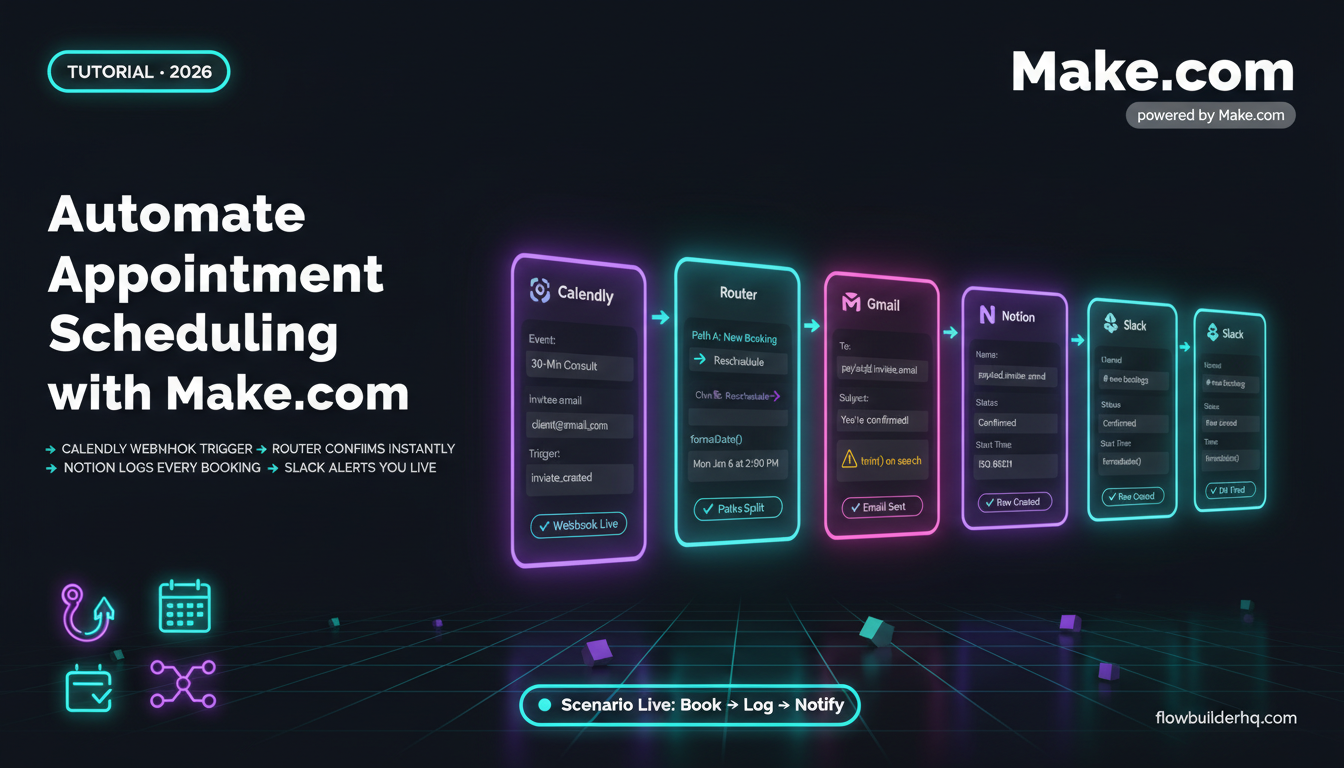
- Trigger: Webhooks > Custom Webhook — use this with Tally, Typeform, or any form tool that can POST to a webhook URL. In Make, create the webhook and copy the URL into your form’s integration settings.
- Add Google Sheets > Add a Row to log the request: date, client name, request description, priority (if your form captures it), status = “Open.”
- Add Gmail > Send an Email to send the client an automatic acknowledgment: “Got your request — I’ll review and follow up within 24 hours.”
- Add Slack > Create a Message to notify yourself: “New client request from [name]: [description].”
For a deeper walkthrough of the Tally + Make combination for client-facing forms, this post on automating client feedback collection covers the webhook setup in full.
If you’re using Typeform instead, this Typeform + Make workflow covers the same intake pattern with Typeform’s specific trigger module.
The Build (Email-Based, No Form)
If clients email requests directly (common for freelancers), skip the webhook. Use the Gmail Watch Emails trigger from Workflow 1, add a filter for emails containing “request” or “can you,” and pipe them into the same Google Sheets log + Slack notification pattern. Less structured, but it works.
Stitching It Together: Your VA Replacement Stack
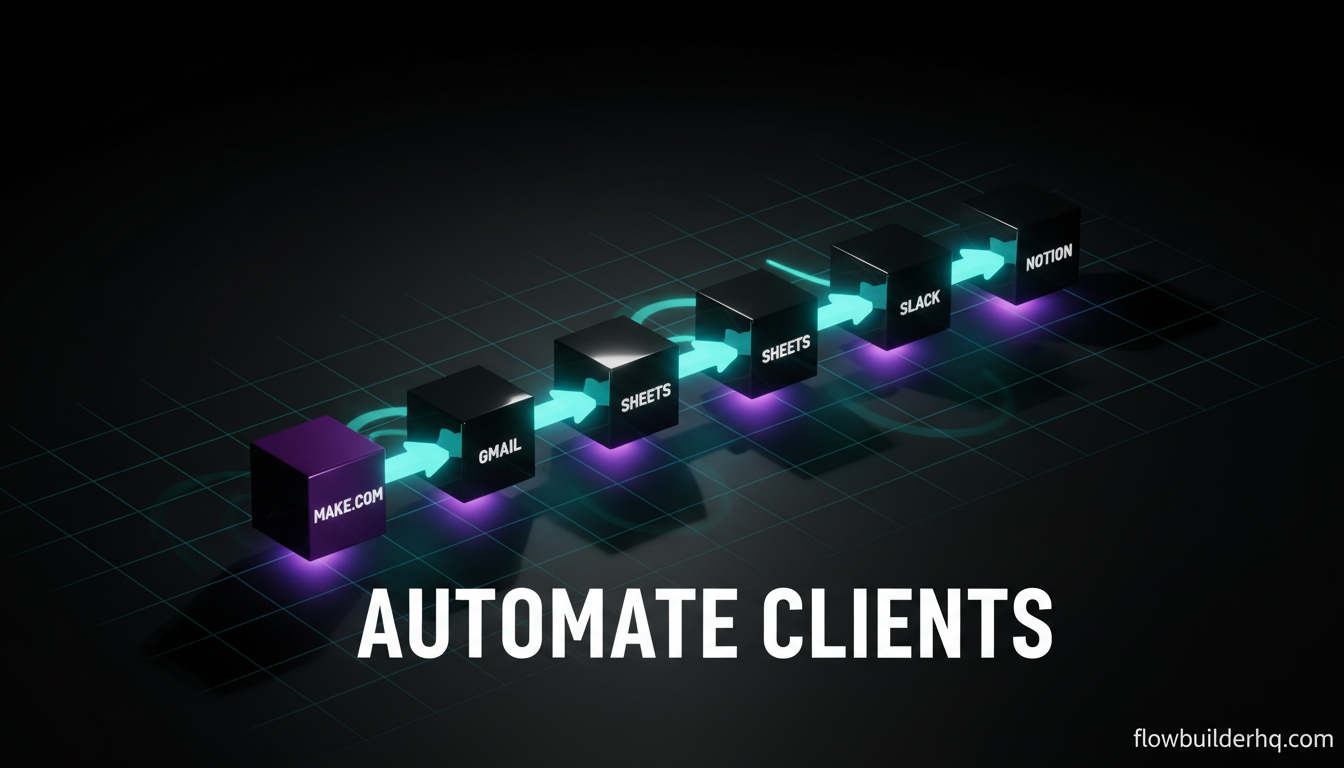
These four workflows operate independently but share infrastructure — Google Sheets as the central data layer, Gmail as the communication layer, Slack as your personal alert channel. Once all four are running, the daily VA-style task list looks like this:
- Client emails → automatically routed, labeled, and logged
- Status updates from clients → automatically written back to your tracker
- Weekly summaries → sent automatically every Friday
- New requests → logged, acknowledged, and pinged to you in Slack
That’s a part-time VA’s primary function, covered by four scenarios running on Make’s Core plan at $9/month.
If you want to extend this further — particularly around client onboarding — this client onboarding workflow adds the new client intake piece that completes the full client lifecycle.
Make.com for Virtual Assistants: Handling Errors Without a Human
The one real risk of running Make as your VA is that if something breaks, no one’s watching. A Gmail connection drops. A Sheet column gets renamed. A client uses an unexpected subject line format and nothing matches.
The fix: set up error notifications on every scenario. In Make, open any scenario, click the wrench icon, and enable Sequential Processing + add an error handler route. Route all errors to a Gmail > Send an Email module that sends you a message with the error description. This way, failures surface immediately instead of silently piling up.
For a complete breakdown of what to do when scenarios fail, this error handling guide covers every major failure type and the fix for each.
On Make’s official scenario settings documentation, you’ll find the full list of error handling options including incomplete executions — worth reading before you go live with any client-facing workflow.
Ops Count Reality Check
Before you assume the free plan covers everything, run the math. Each module execution in a scenario = 1 operation. Workflow 1 (4 modules) running every 5 minutes = 4 ops × 288 daily runs = 1,152 ops/day from that scenario alone if it runs continuously — but it only fires when emails arrive. With 20 client emails per day, that’s 80 ops/day. At that rate, all four workflows combined likely stay under 500 ops/day, which is well within the Core plan’s headroom.
For a precise breakdown of how Make counts operations and where costs actually scale, this Make.com pricing breakdown shows exactly what you pay at different volume levels.
Who This Works For (and Who It Doesn’t)
Good fit: Freelancers and solopreneurs with 3-15 active clients, predictable email-based client communication, and recurring status update obligations. If your client work follows patterns — and most service work does — these scenarios will hold up.
Not a fit: Anyone whose client communication is highly irregular, requires nuanced judgment, or involves sensitive information you’re not comfortable routing through cloud services. Make processes data through their servers — know that before wiring up anything confidential.
Also not a substitute for a real CRM if your client relationships are complex. For that layer, this post on client management without a CRM covers where a spreadsheet-plus-automation setup hits its limits.
Start With One Scenario, Not Four
Don’t build all four workflows this week. Pick the one that’s eating the most time. For most solopreneurs, that’s either the weekly summary (Workflow 3) or the intake logging (Workflow 4). Get one running, watch it for a week, then add the next.
The goal isn’t to automate everything immediately. It’s to systematically eliminate the tasks that feel like they need a person but actually just need a trigger and a rule. Make.com is built for exactly that.
Ready to build? Start your Make.com account here — the free plan is enough to run all four workflows at low client volume, and you can upgrade when the ops math requires it.
For more on what Make can do across a full one-person business, this freelance business automation overview covers the full operational picture beyond just client task management.
Building this yourself? Get the workflow pack.
5 ready-to-import n8n workflows — lead capture, invoicing, content repurposing, onboarding, social posting. Free.